Lock Screen Setup
Add a shortcut, then have it update the wallpaper from your current four quadrants whenever Yondo opens or closes. It takes about 3 minutes. Follow along with the “Set Lock Screen” screen in the app.
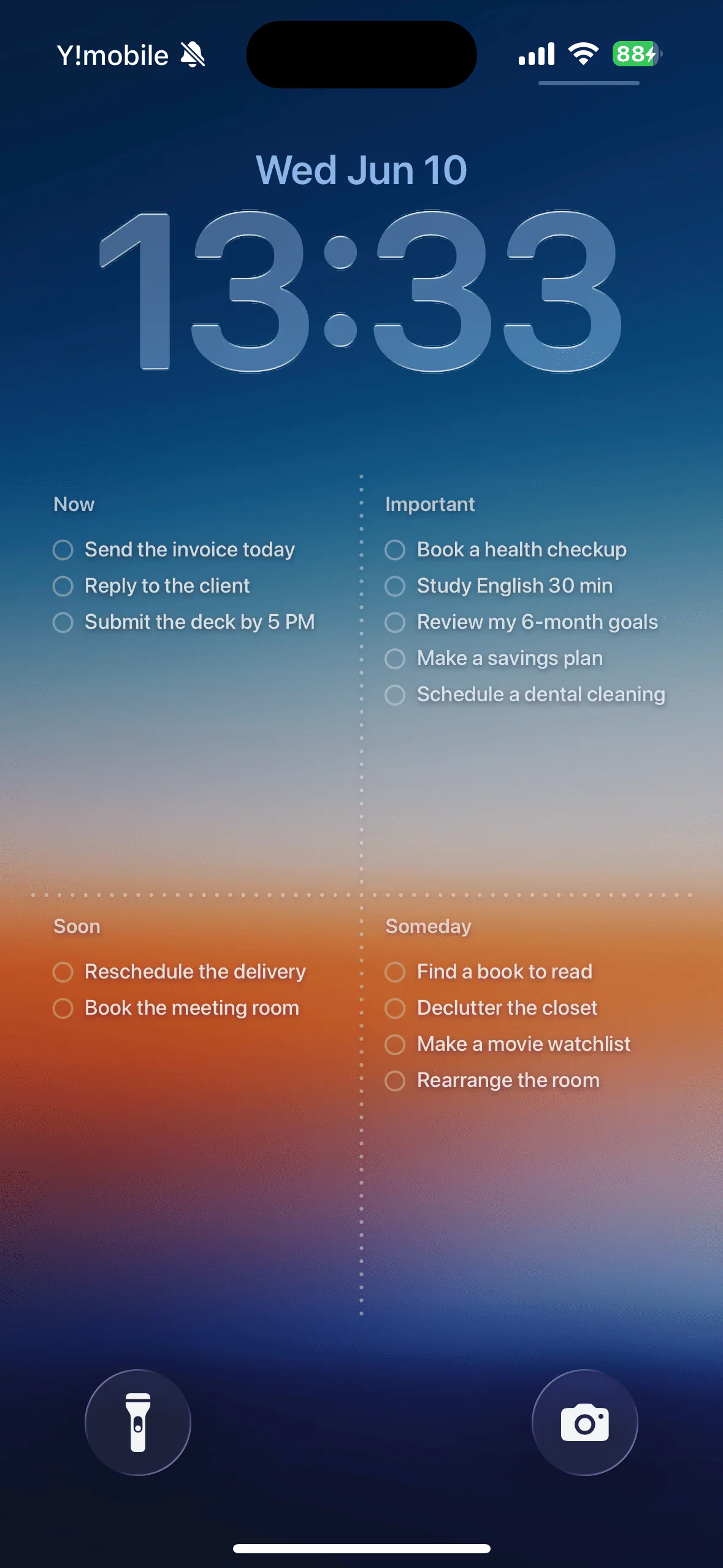
This is how your Lock Screen will look when setup is done.
- 1Add the shortcut
- 2Test image creation
- 3Create the automation
- 4Confirm it runs
1Add the shortcut
First, add the shortcut that lets your iPhone place Yondo’s image on the Lock Screen. Follow the screens below in order.
-
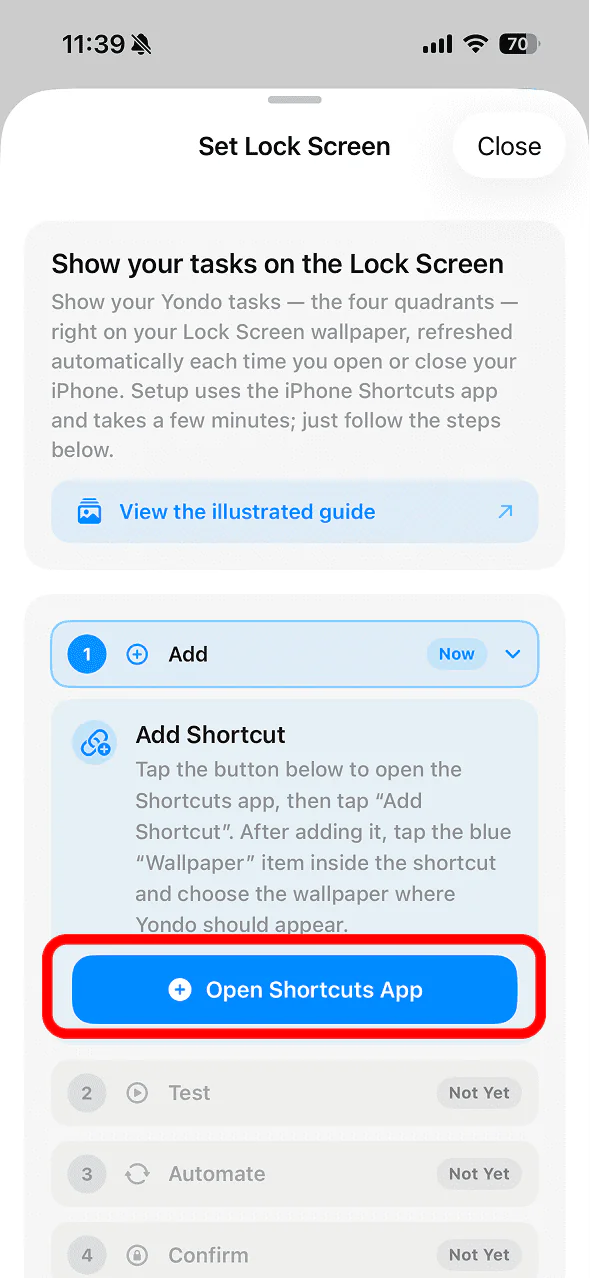
In Yondo's “Set Lock Screen”, tap “Open Shortcuts App”
-
When Shortcuts opens, tap “Add Shortcut”
Note: On iOS 18, a share sheet appears first — choose “Shortcuts” there to reach this screen.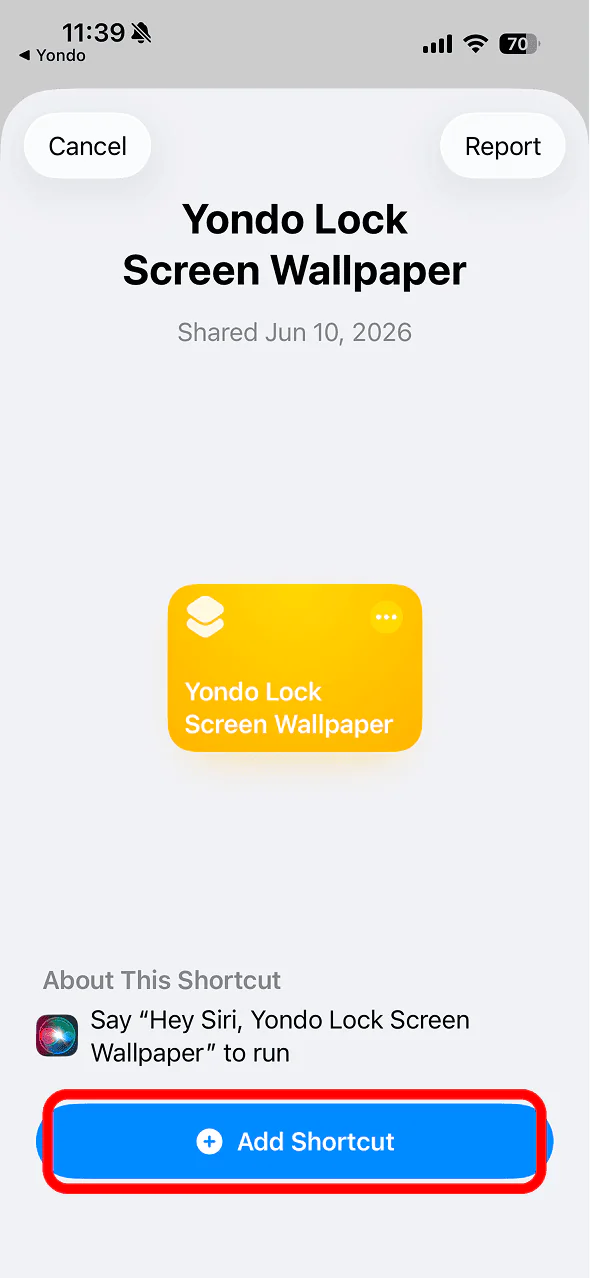
-
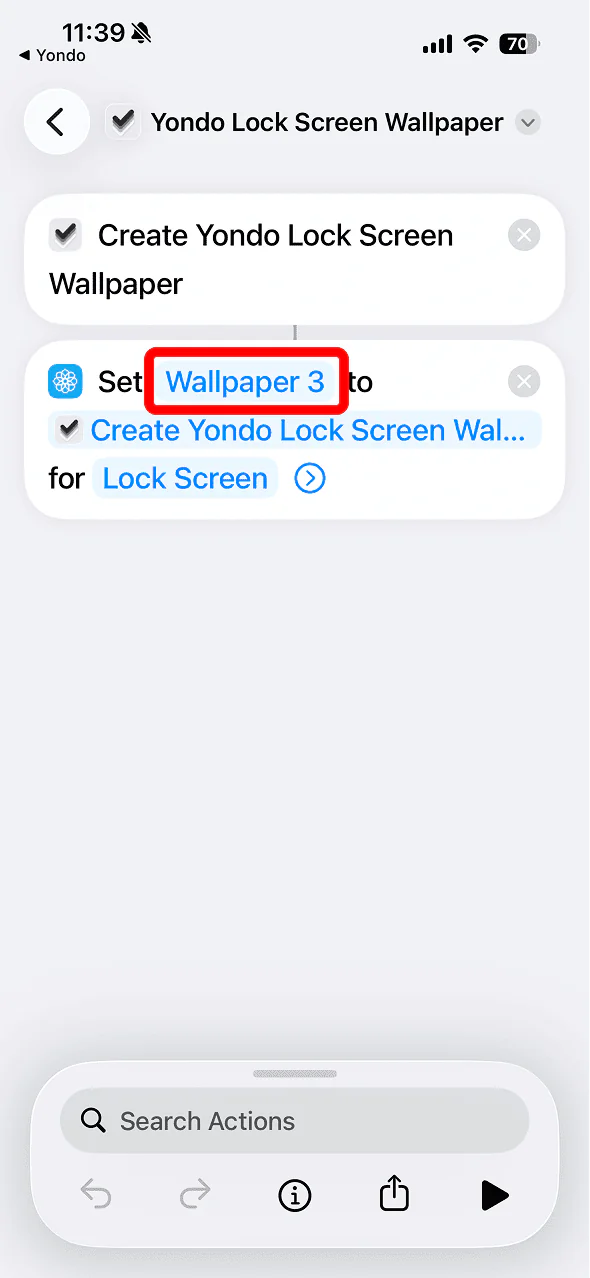
After adding it, tap the blue “Wallpaper” item inside the shortcut
-
Choose one Lock Screen where you want Yondo to appear, then tap the “✓” in the top-right
Note: Dimmed wallpapers are Apple's built-in designs and can't be selected. If none can be chosen, long-press your Lock Screen and add a new wallpaper first (see the FAQ below).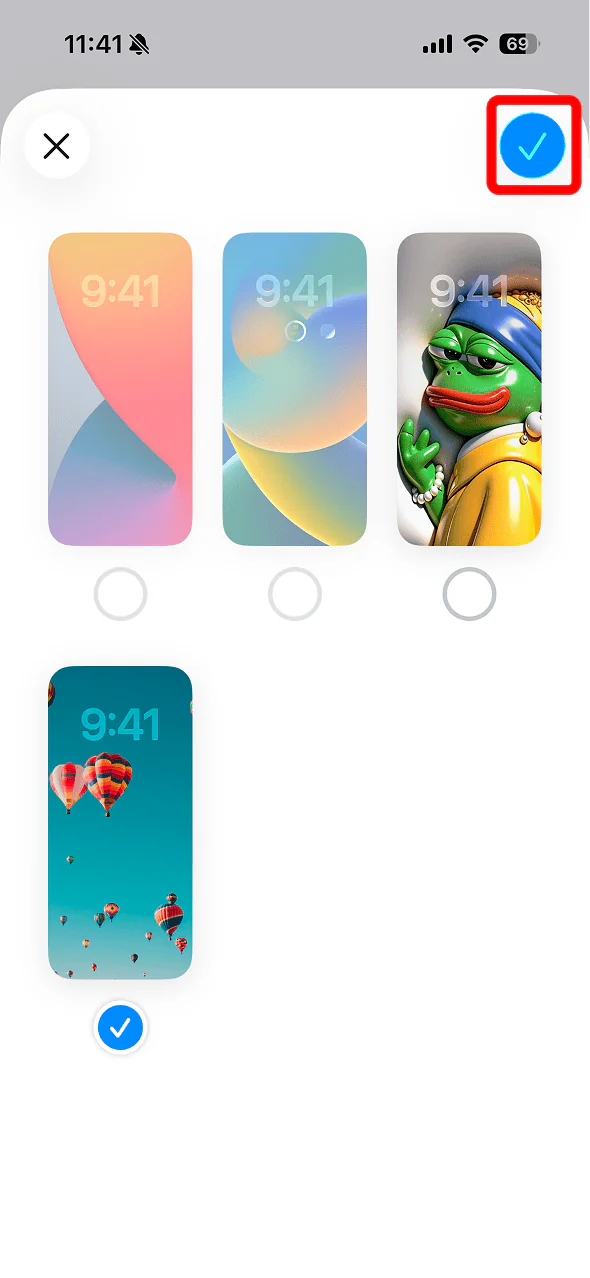
-
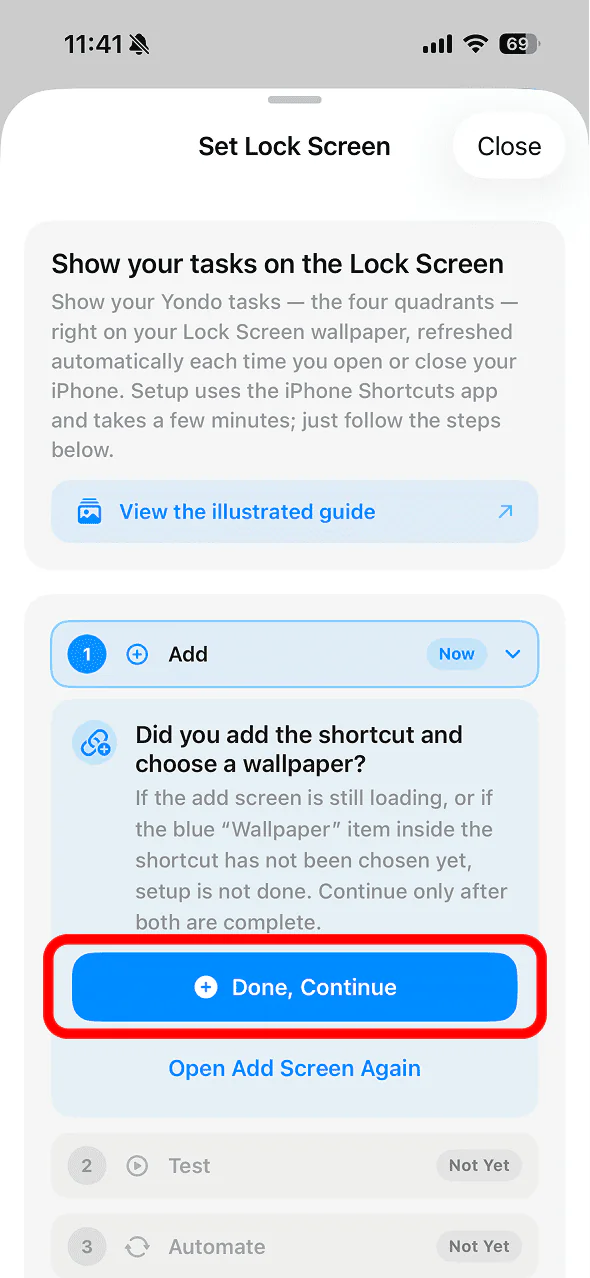
Return to Yondo and tap “Done, Continue”
2Test image creation
Next, check that Yondo’s four-quadrant image appears correctly on the Lock Screen. The first time, Shortcuts asks for a few permissions — allow them all.
-
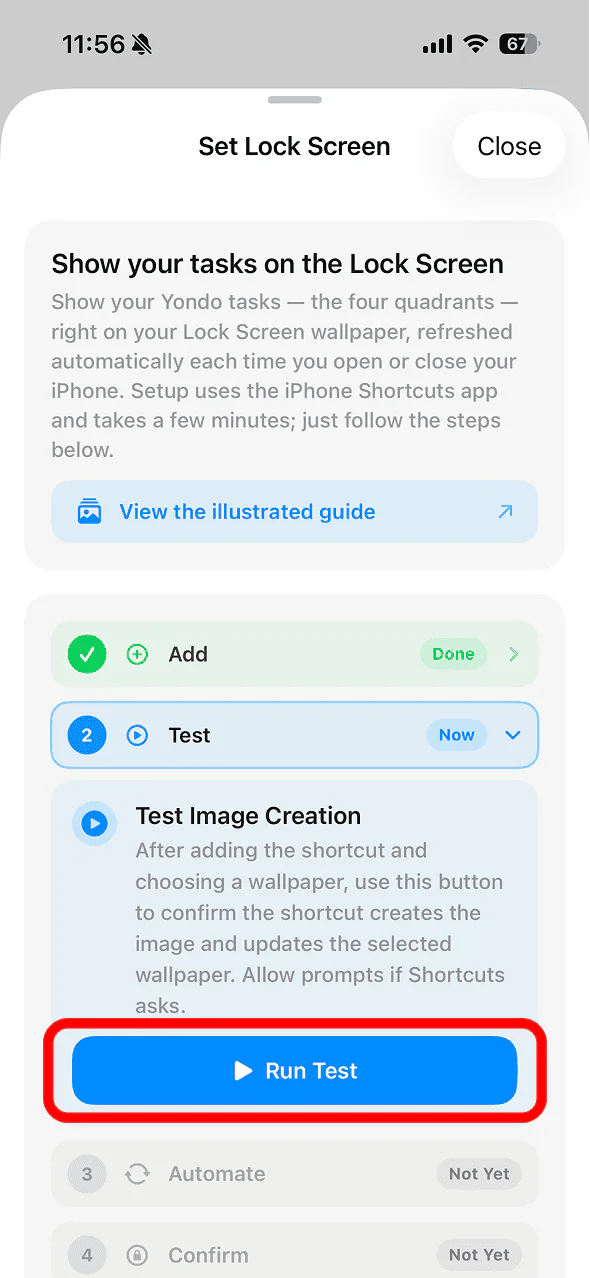
In Yondo, tap “Run Test”
-
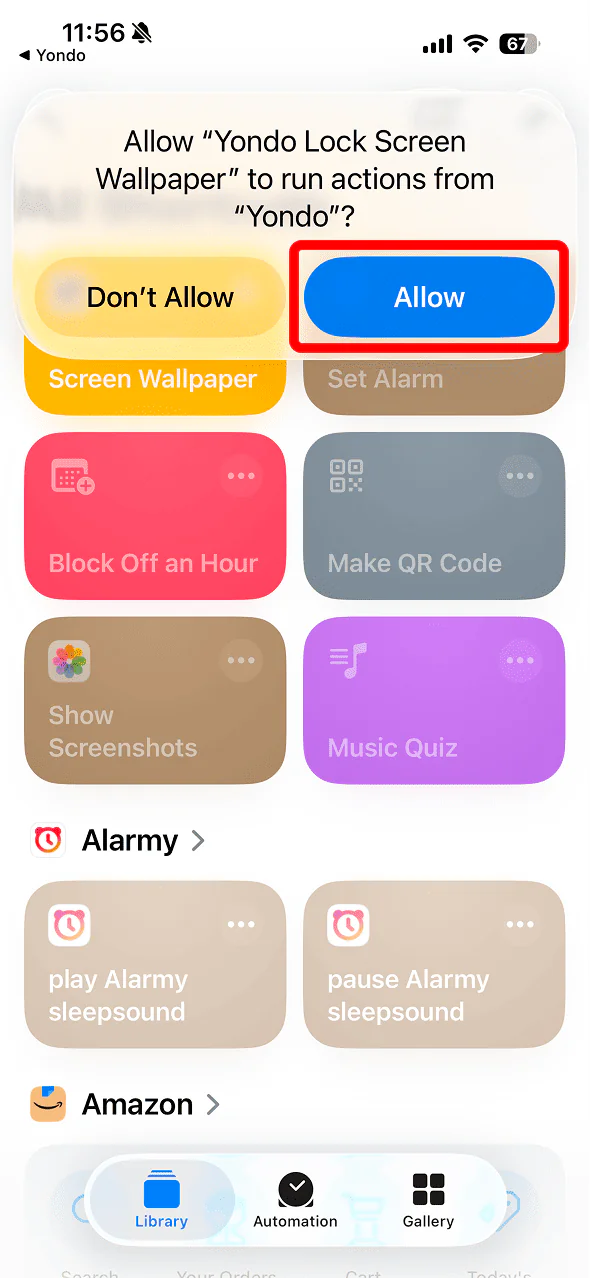
For “…run actions from Yondo?”, tap “Allow”
-
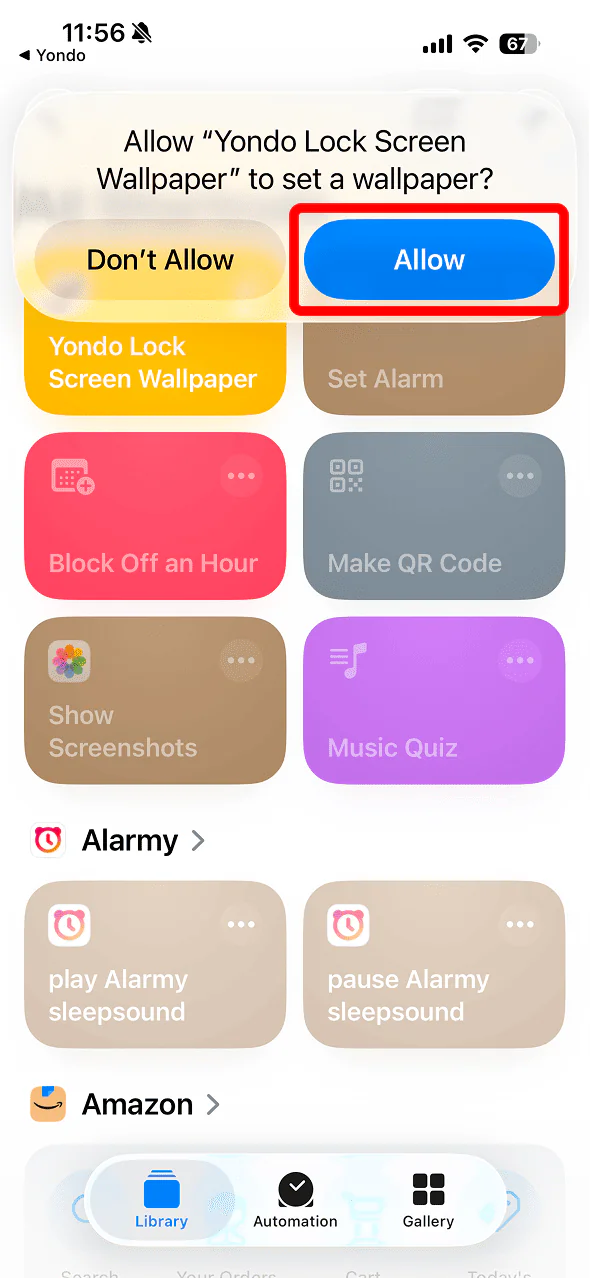
For “…set a wallpaper?”, tap “Allow”
-
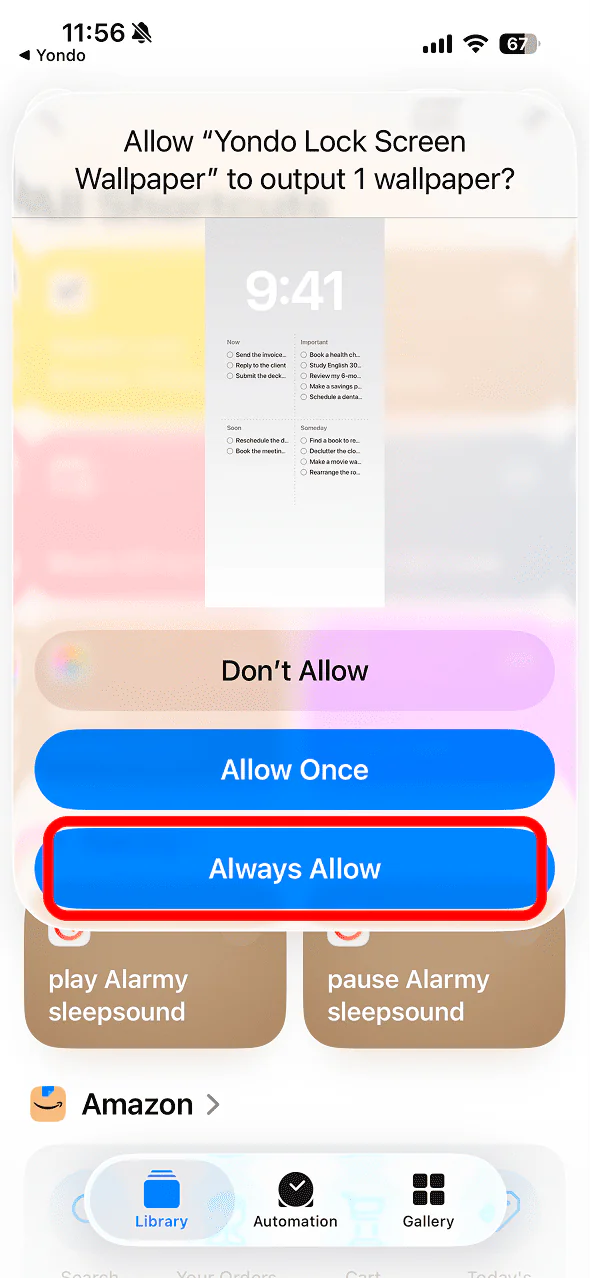
For “…output 1 wallpaper?”, tap “Always Allow” (so it won't ask every time)
3Create the automation in Shortcuts
Make the image-creation shortcut run automatically when Yondo opens or closes. Follow the steps below to create the automation.
-
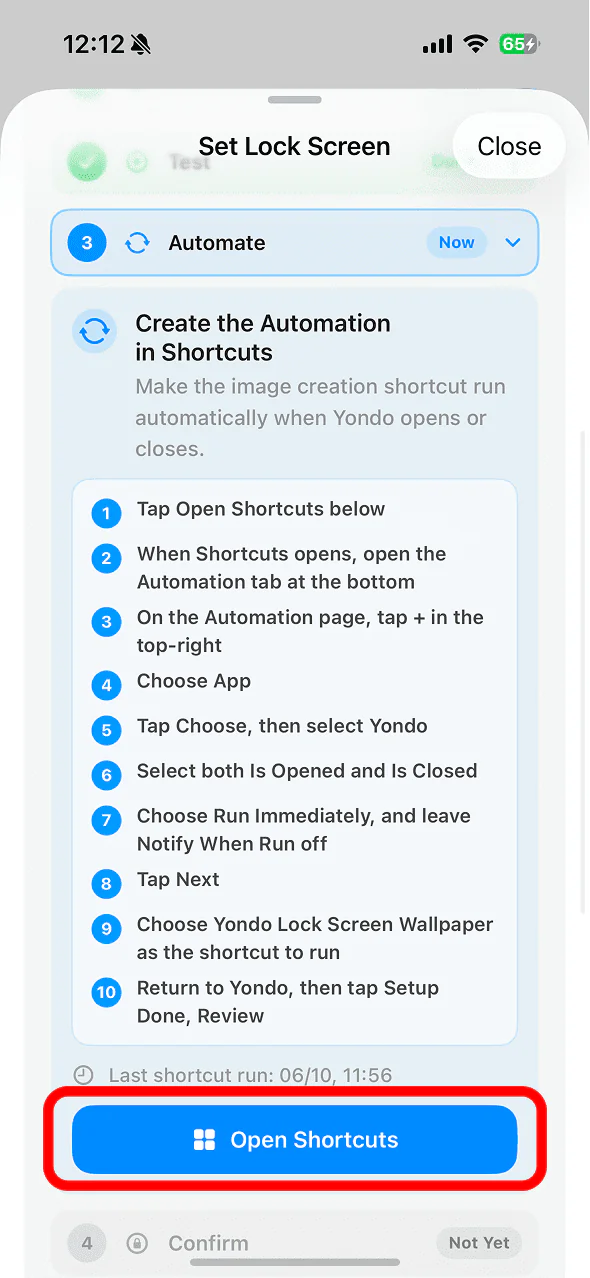
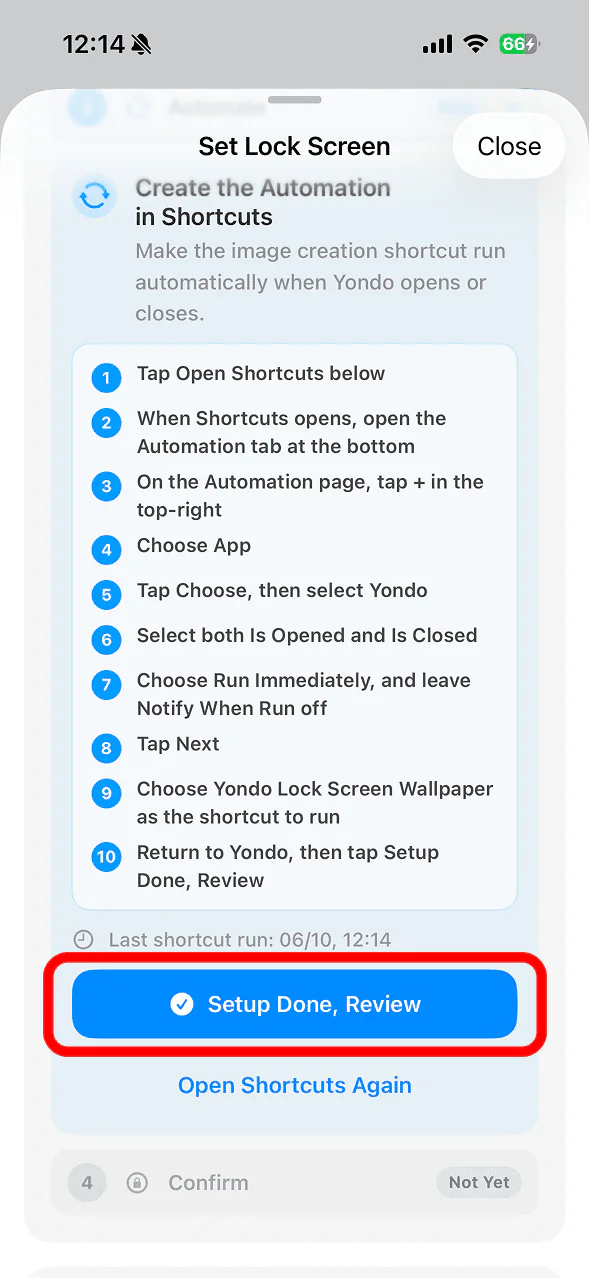
Tap “Open Shortcuts” in Yondo
-
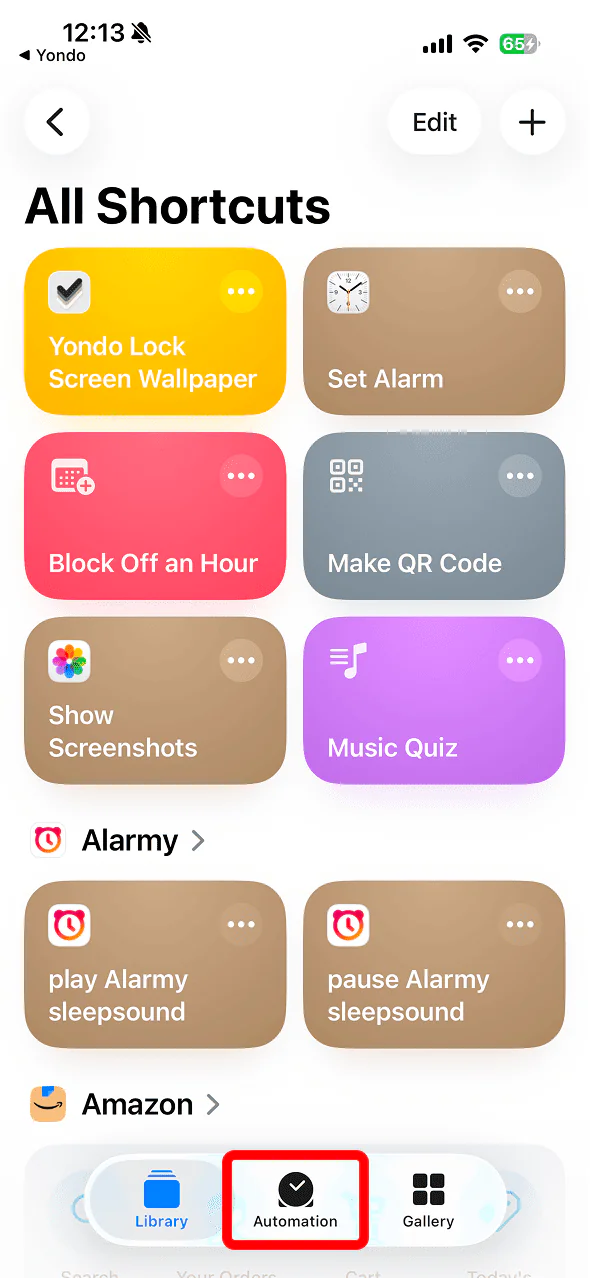
When Shortcuts opens, open the Automation tab at the bottom
-
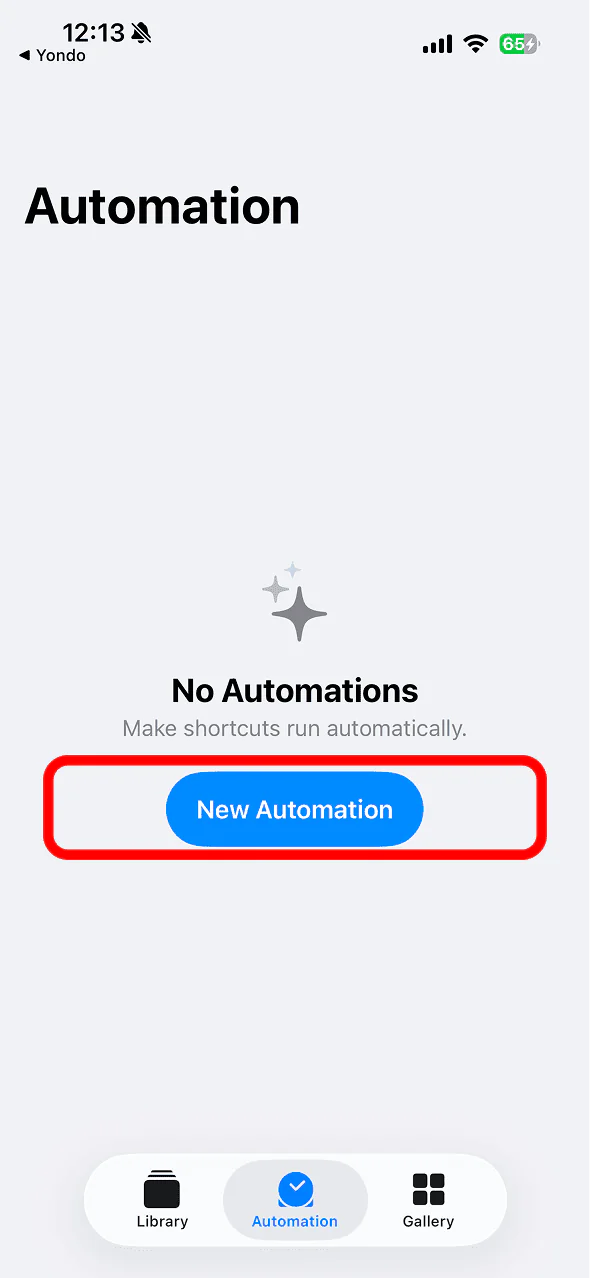
Tap “New Automation” (or the + in the top-right if you already have automations)
-
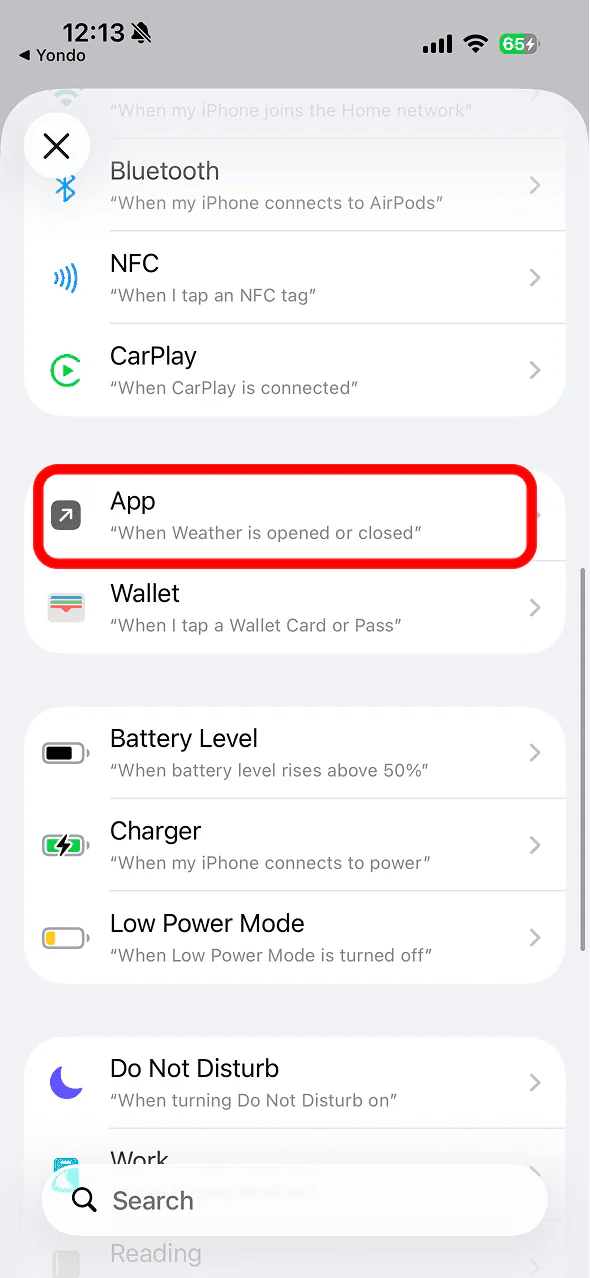
From the trigger list, choose App
-
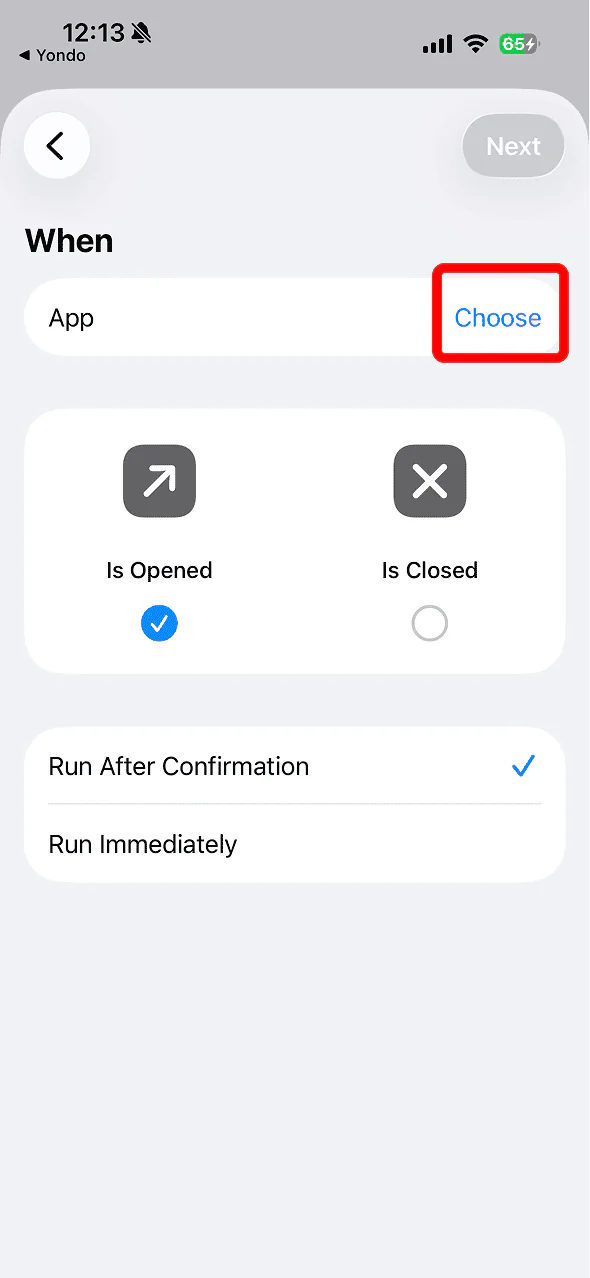
On the App row, tap Choose
-
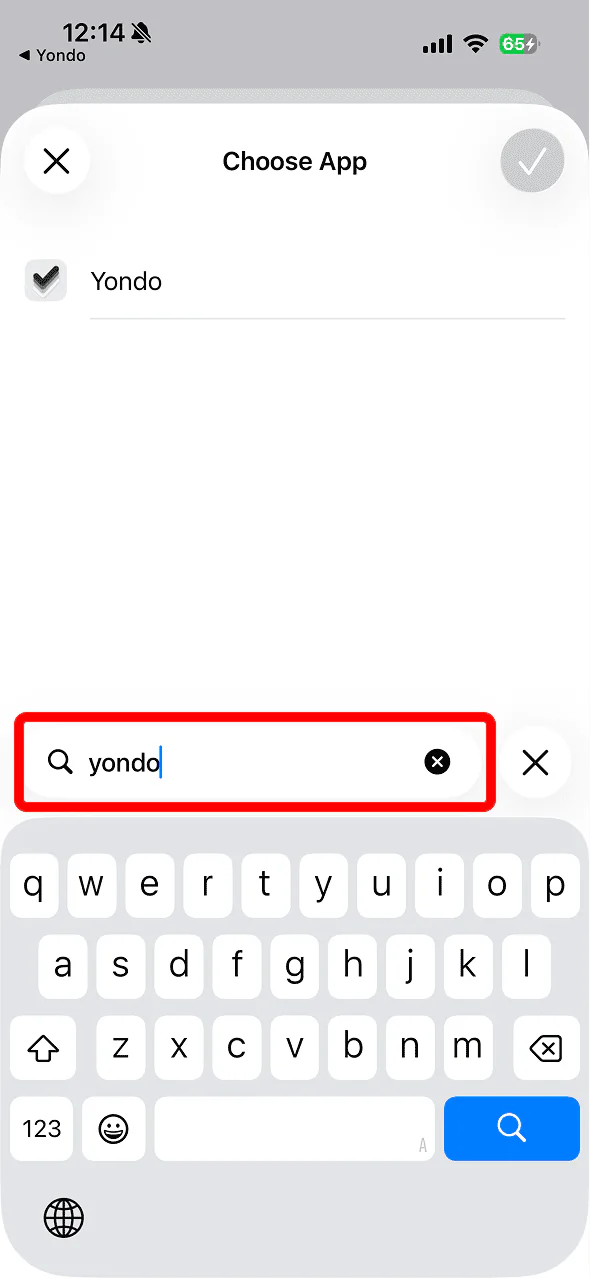
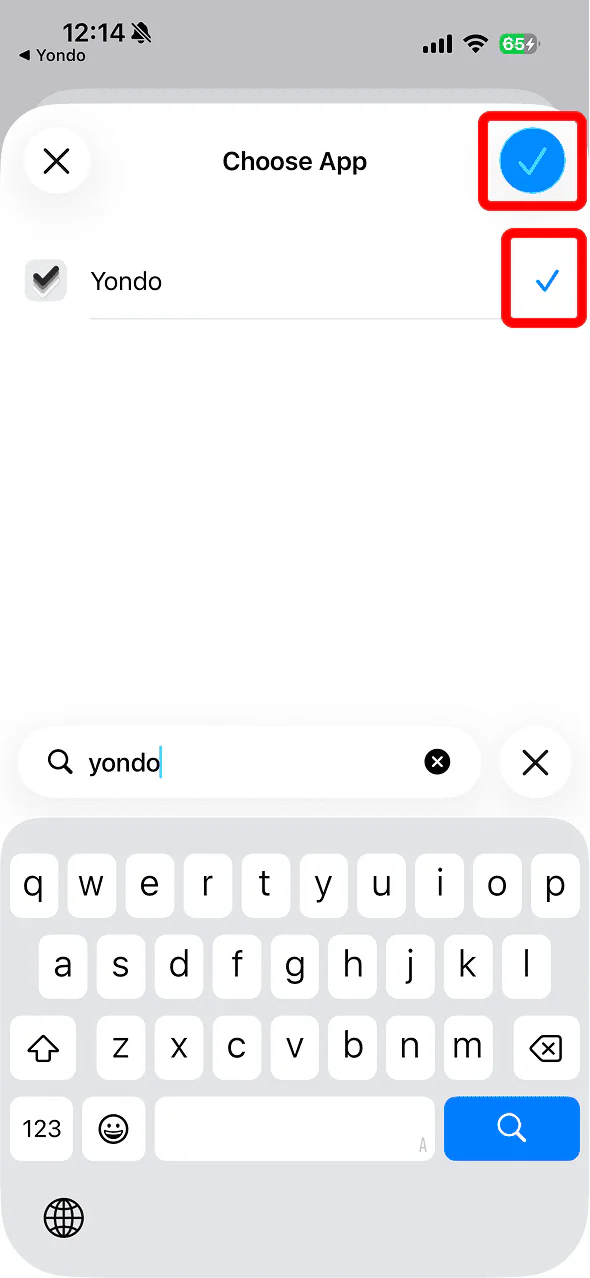
Type “Yondo” in the search field
-
Check Yondo, then tap the “✓” in the top-right
-
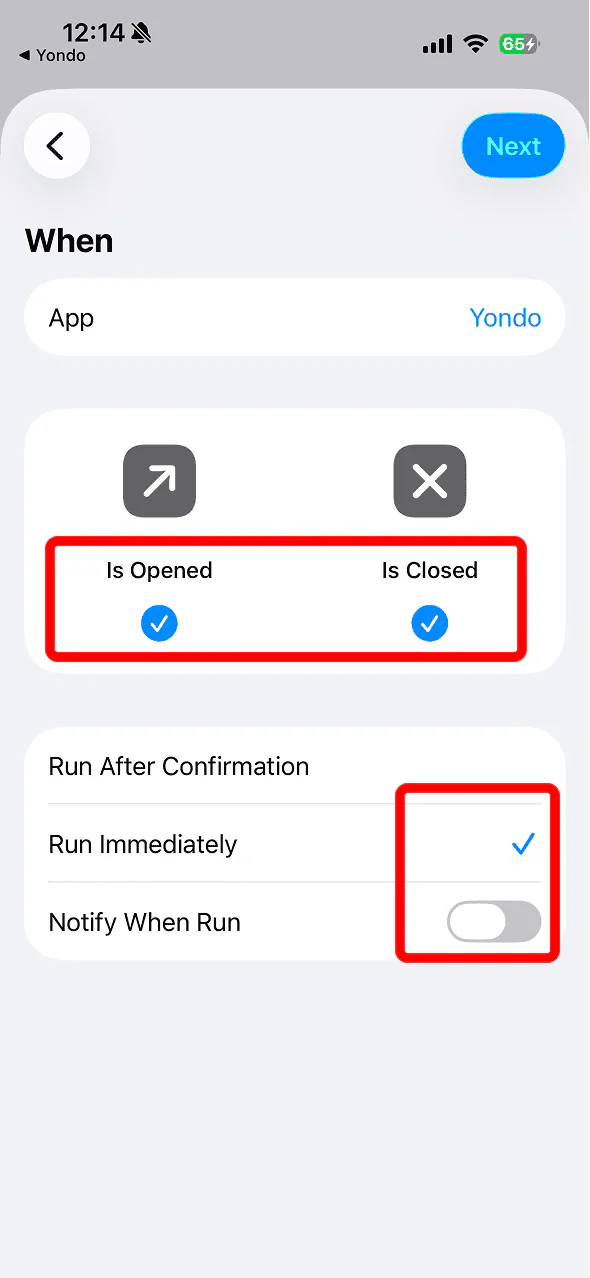
Select both Is Opened and Is Closed, choose Run Immediately, and turn Notify When Run off
-
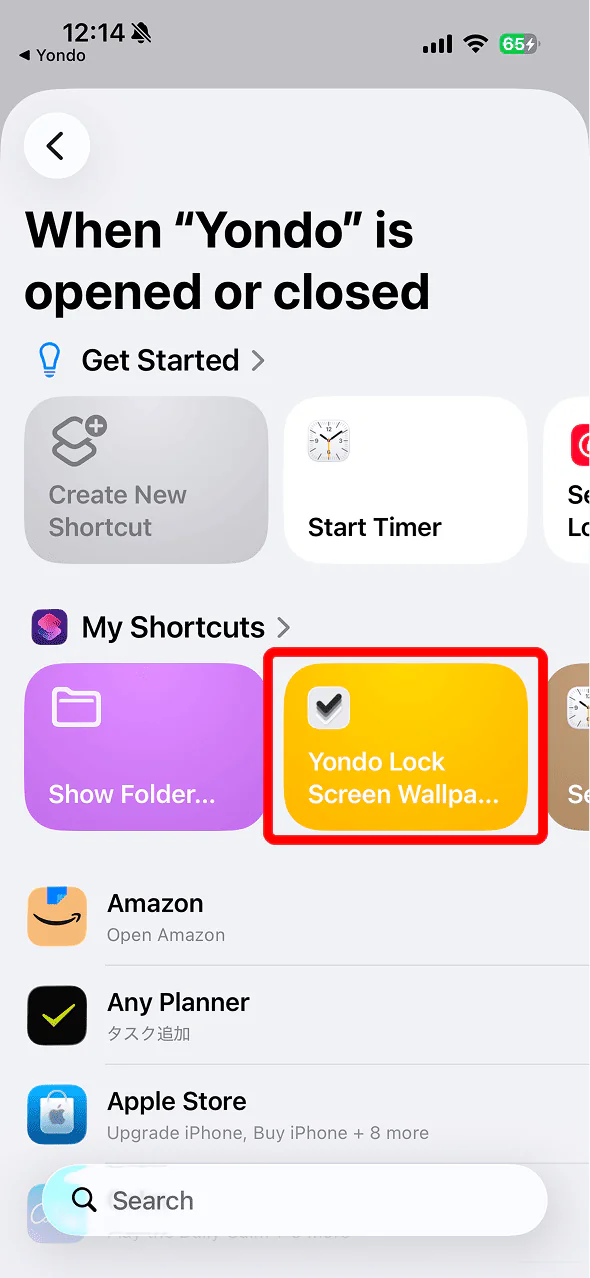
Tap Next, then choose “Yondo Lock Screen Wallpaper” as the shortcut to run
-
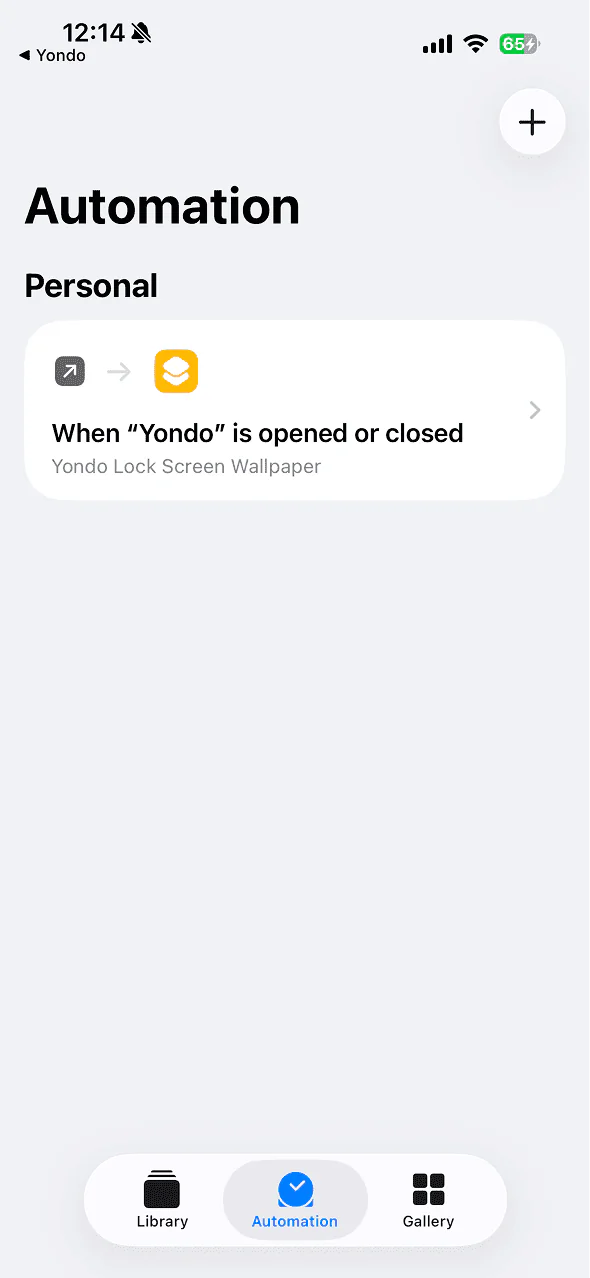
Confirm the automation has been created
-
Return to Yondo — the check screen appears automatically
If it doesn't, tap “Setup Done, Review”.
4Confirm it runs
On Yondo's check screen, confirm the automation you created matches all six of these, then tap “All 6 Are Done, Continue”:
- The trigger is App
- The selected app is Yondo
- Both Is Opened and Is Closed are selected
- It is set to Run Immediately, and Notify When Run is off
- It runs Yondo Lock Screen Wallpaper
- In the shortcut's Set Wallpaper action, Show Preview is off
Finally, lock your iPhone to make Yondo count as closed, and the automation runs. Return to Yondo — setup is complete once “Last shortcut run” has updated to a new time.
- 1Add the shortcut
- 2Turn the automation on
- 3Check the wallpaper
- 4Confirm it runs
1Add the shortcut
First, add the shortcut that lets your iPhone place Yondo’s image on the Lock Screen.
-
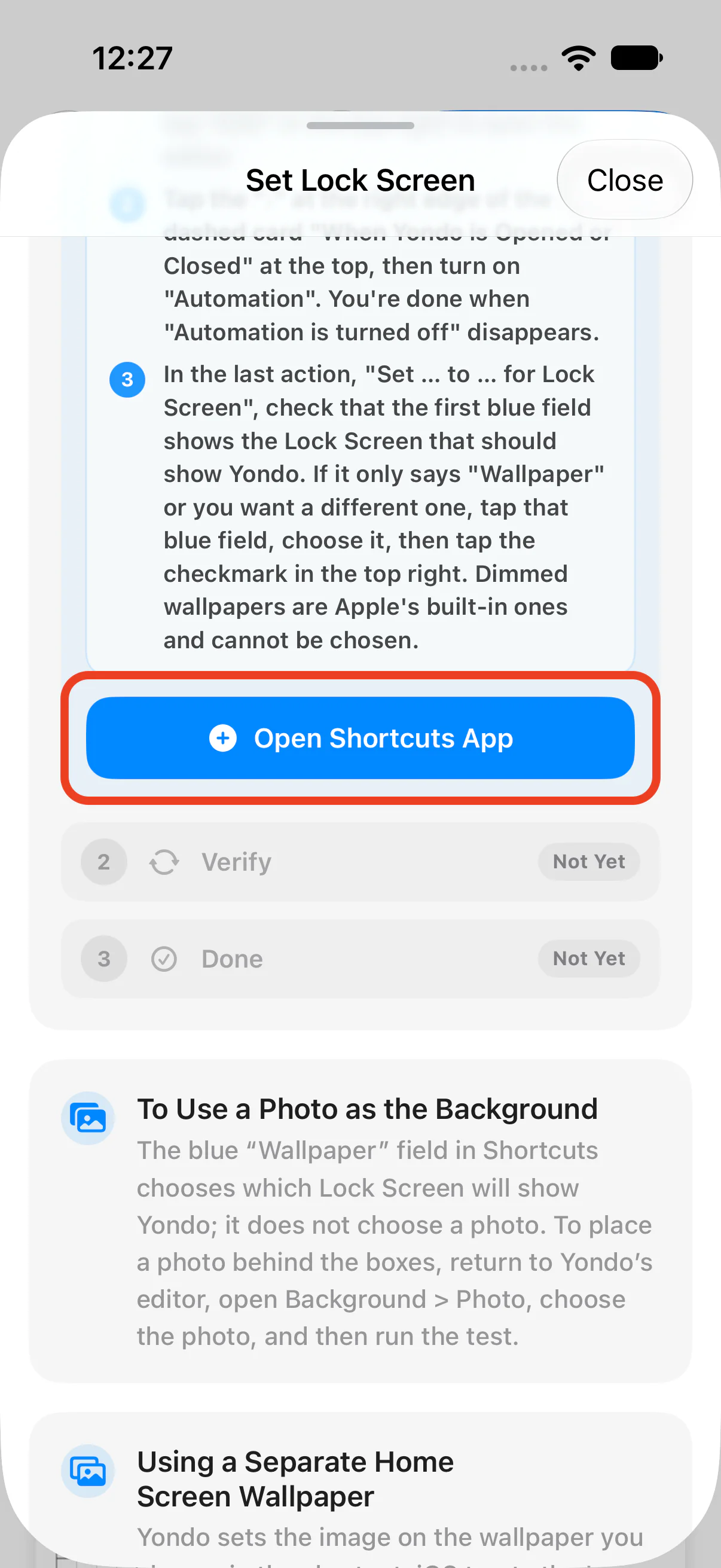
In Yondo’s “Set Lock Screen”, tap “Open Shortcuts App”
-
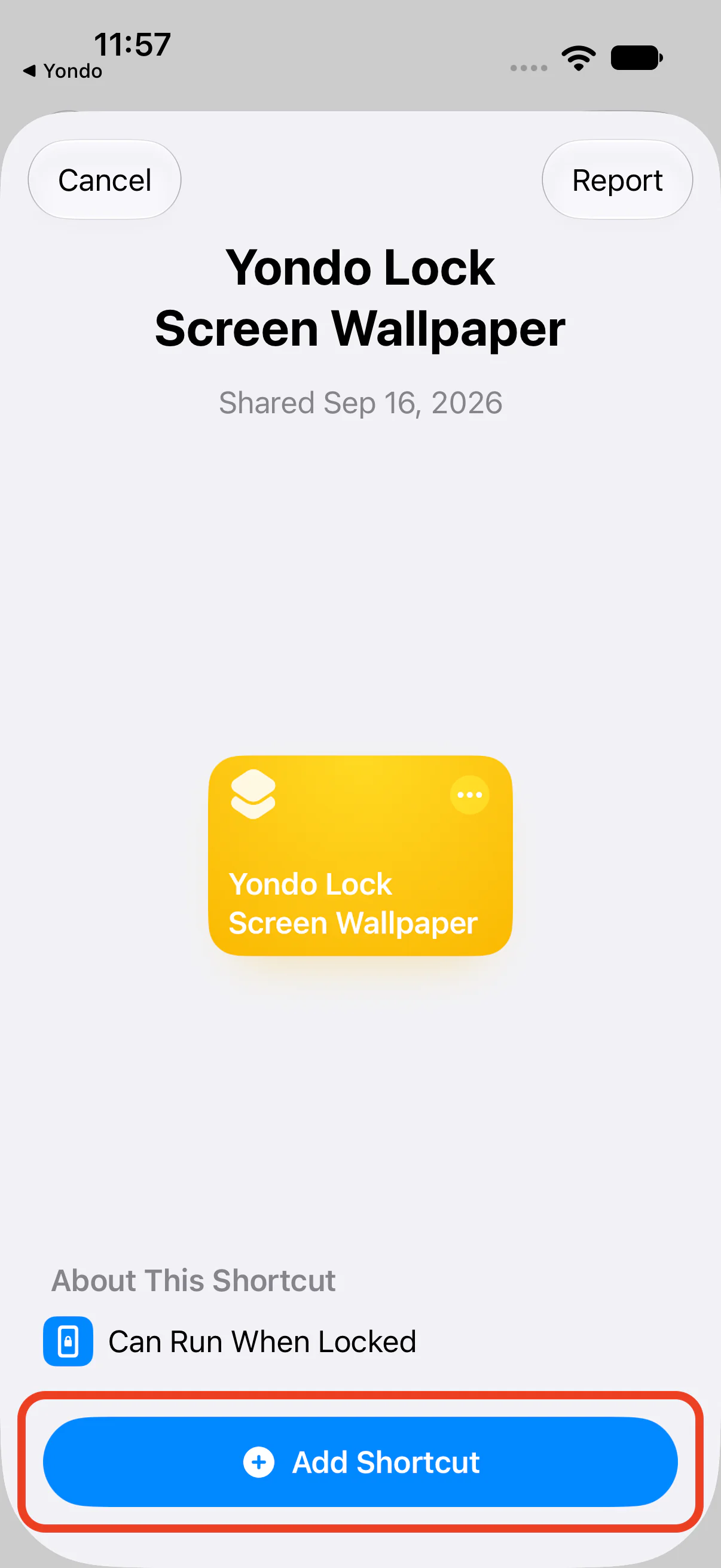
When Shortcuts opens, tap “Add Shortcut”
-
If a screen showing only one yellow card opens after adding, tap “Edit” in the top-right to open the editor
Note: This screen appears on devices that support Apple Intelligence. If the editor opens directly, just continue to the next step.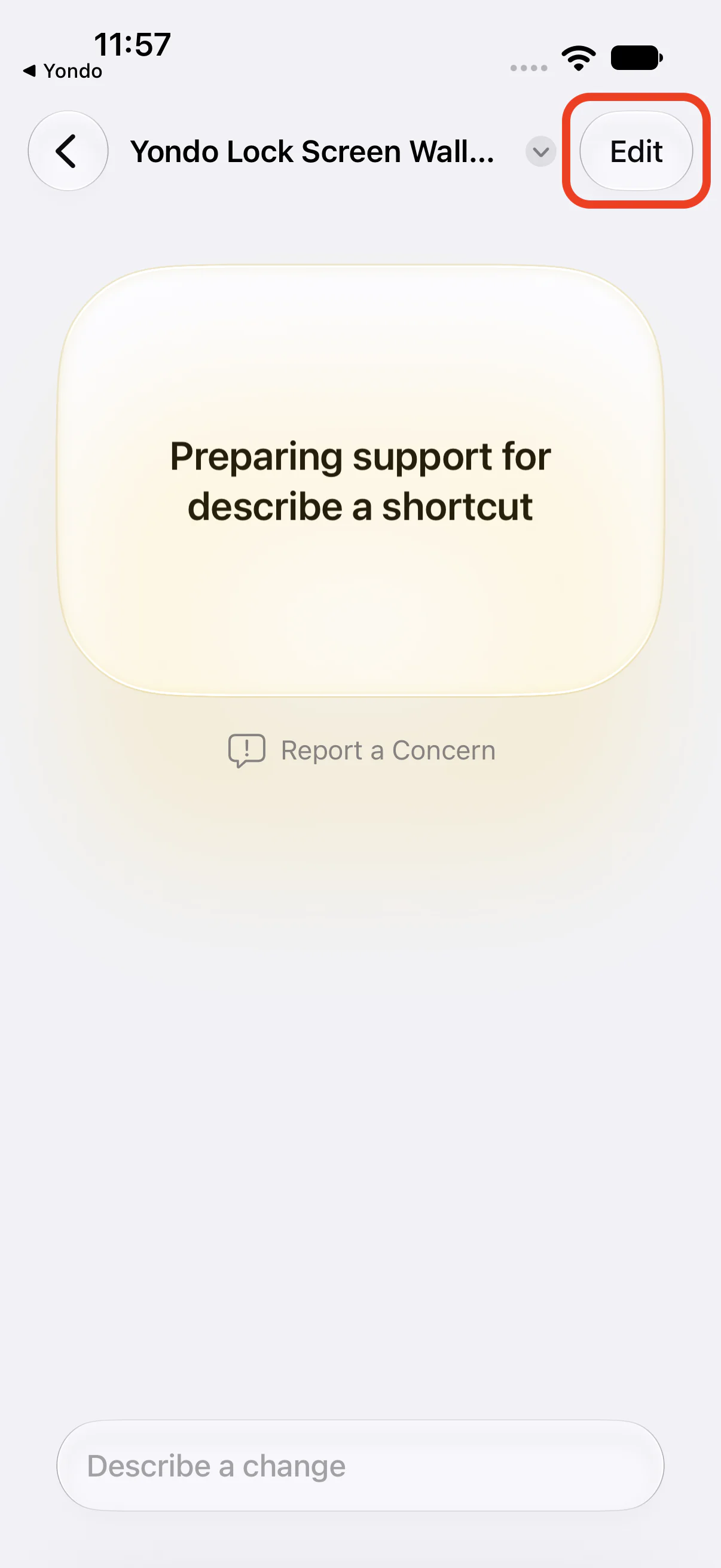
2Turn the automation on
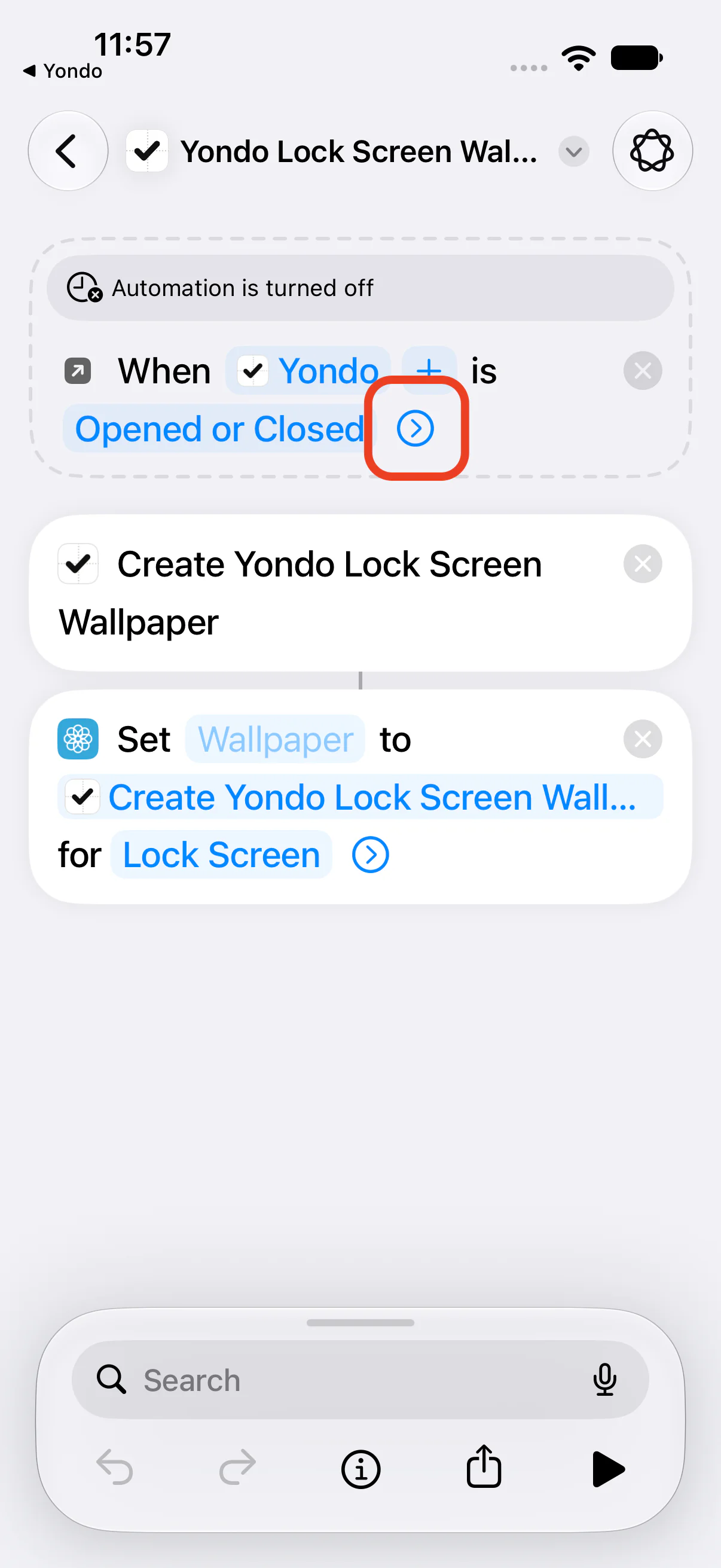
At the top of the shortcut you added there is a dashed card that reads “When Yondo is Opened or Closed”, along with “Automation is turned off”. For safety, it is off right after you add the shortcut.
-
Tap the “⟩” at the right edge of the card to open it
-
Turn “Automation” on. You’re done once “Automation is turned off” disappears
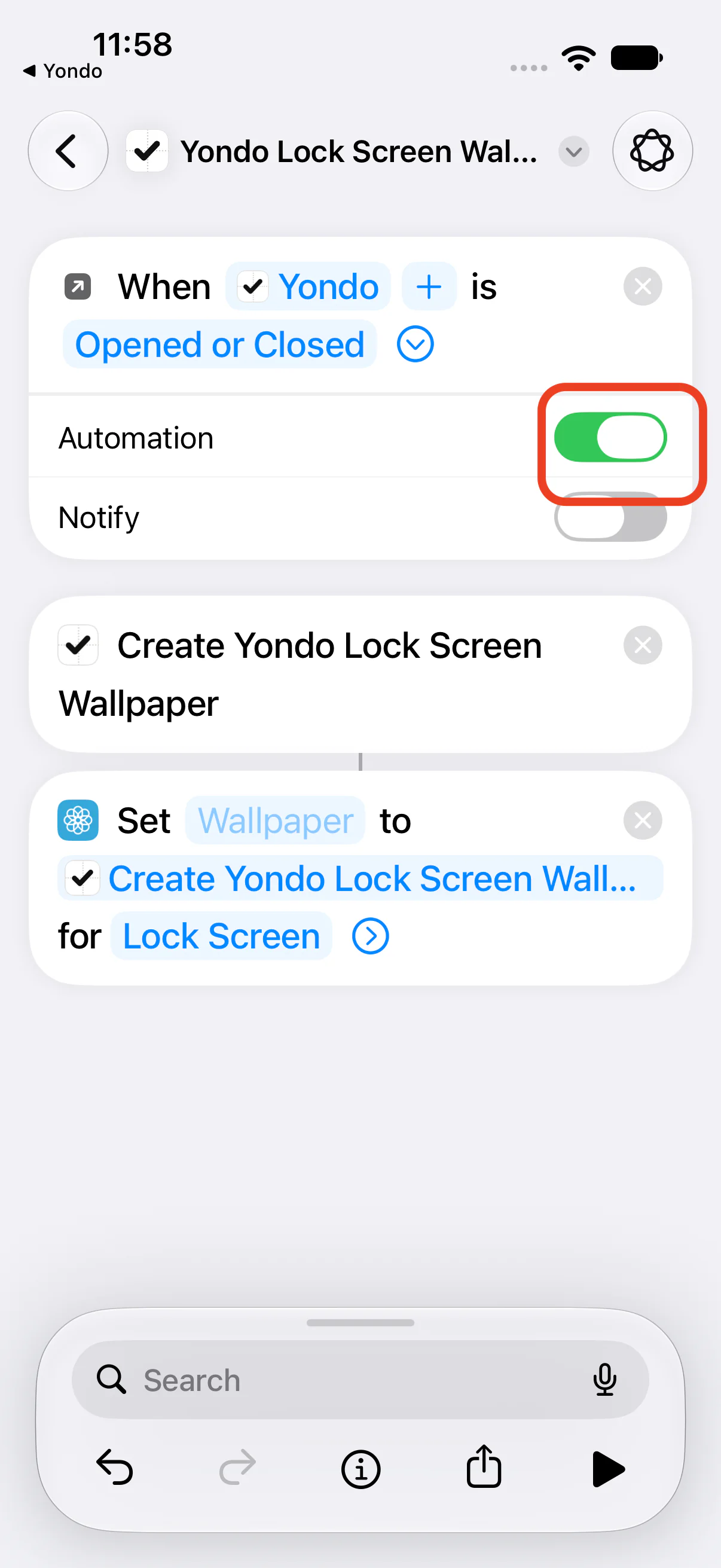
- Leave “Notify” off (if you turn it on, a notification appears every time you open or close Yondo)
3Check the wallpaper
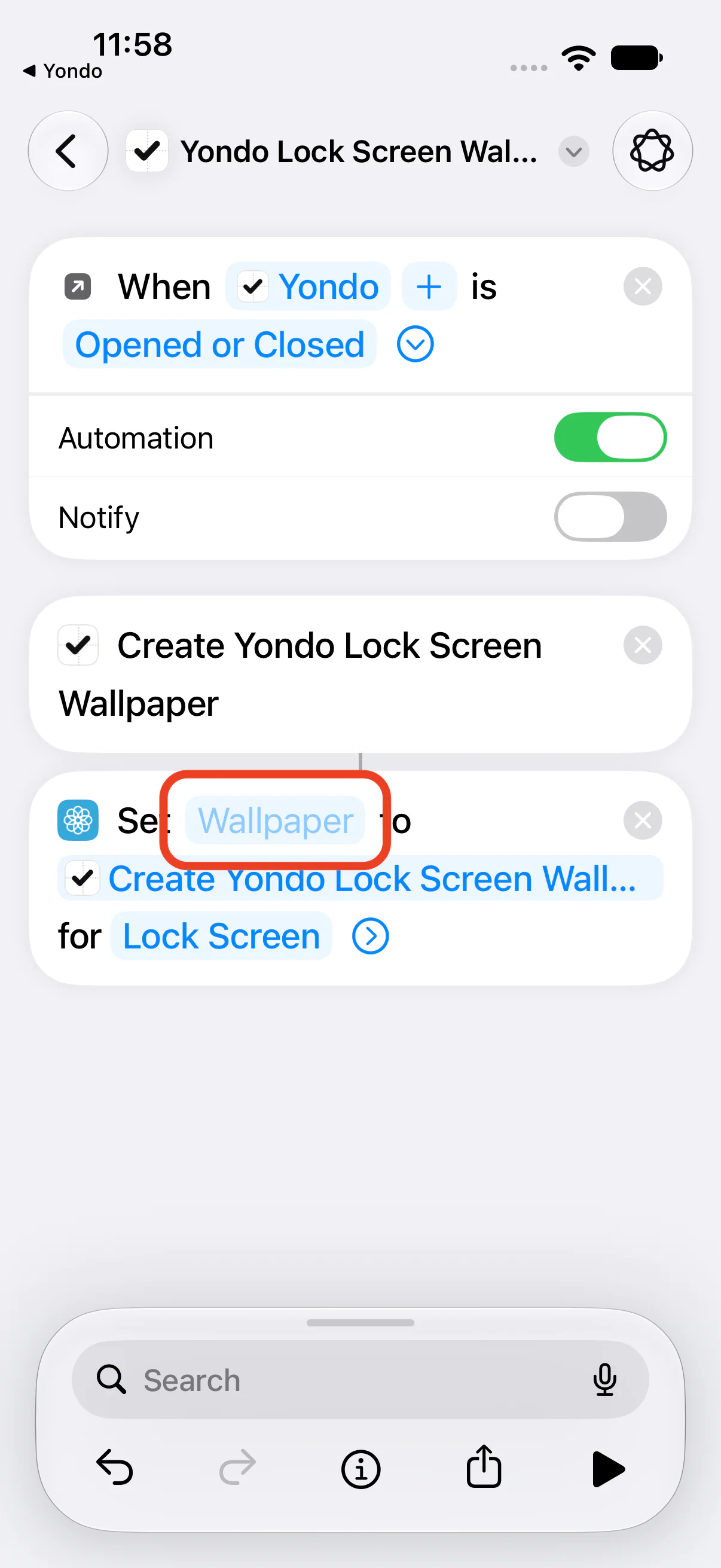
At the very bottom of the shortcut, check that the first blue field in “Set … to … for Lock Screen” holds the Lock Screen that should show Yondo’s image.
-
If the first blue field in “Set … to … for Lock Screen” already holds the Lock Screen where you want Yondo to appear, leave it as it is
-
If it only says “Wallpaper”, or you want a different Lock Screen, tap that blue field, then choose one Lock Screen and tap the “✓” in the top-right
Note: Dimmed wallpapers are Apple’s built-in designs and can’t be selected. If none can be chosen, long-press your Lock Screen and add a new wallpaper first (see the FAQ below).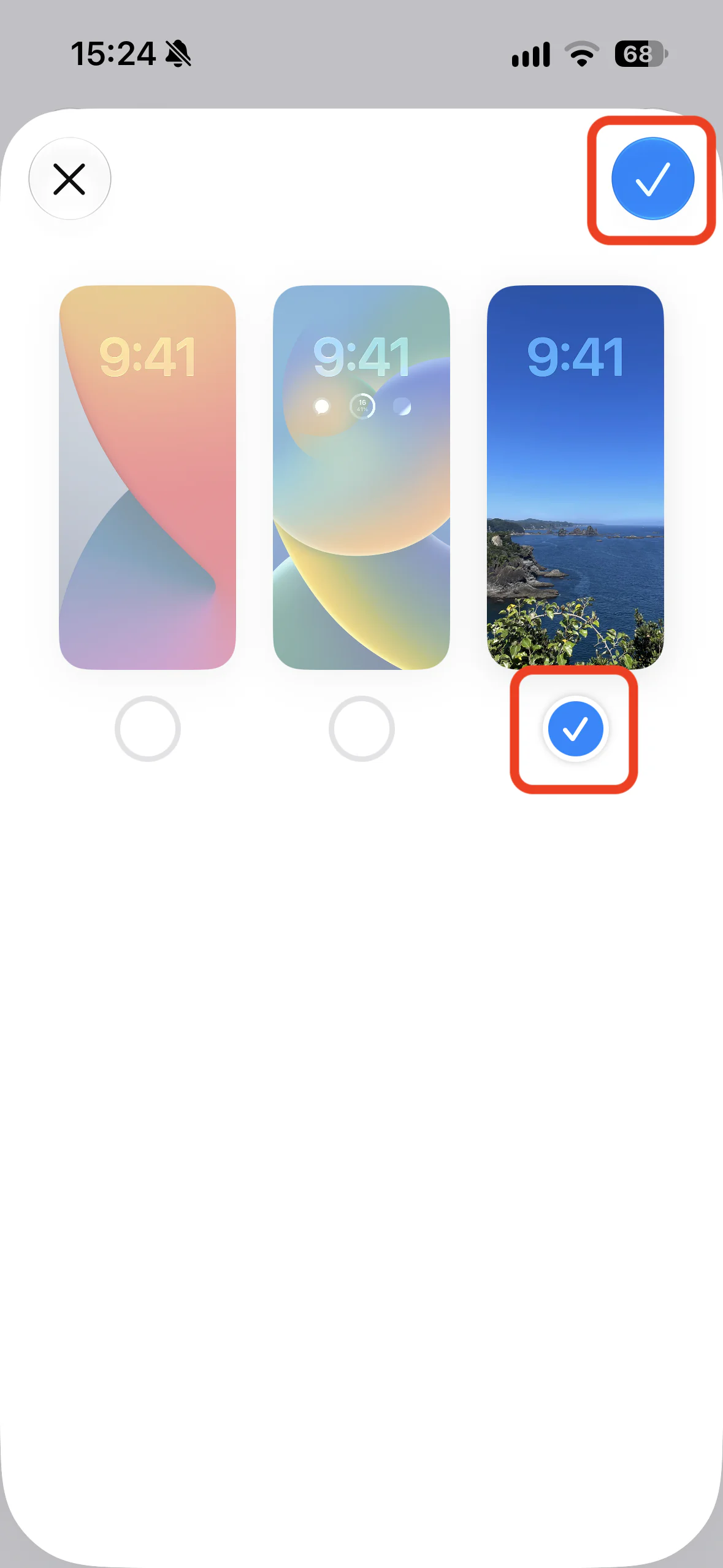
- Return to Yondo and tap “Done, Continue”
4Confirm it runs
Close Yondo, then open it again. Setup is complete once the Lock Screen image updates by itself and “Last shortcut run” in Yondo shows a new time.
On an iPhone affected by the issue above, Yondo shows “Automatic updates have not been confirmed yet” (only on devices where no automatic update has been confirmed after opening Yondo several times). It appears in Settings under “Important Notice” and in the setup steps of “Show Tasks on Lock Screen”.
- Tap “Update automatically using notifications” in that notice
- Read the explanation, tap “Continue”, and allow Yondo’s notifications
- Follow step 1: “Open Shortcuts App” → “Add Shortcut” → “Replace”
- Open “⟩” on “When I receive a notification from Yondo” at the top and turn on “Automation”
- Return to Yondo and tap “Done, Continue”
- Close Yondo. You are done when the Lock Screen updates
From then on, every time you leave Yondo it sends itself a notification, and that notification updates the Lock Screen. The notification never appears on screen or in Notification Center and makes no sound. After switching, using Yondo feels the same as before: close Yondo and the Lock Screen updates.
Quick Add (Advanced)
Add a task with one tap — from the Action Button and more — without opening the app, and see it on your Lock Screen right away. Complete Steps 1–4 above first.
1. Add the Quick Add shortcut
-
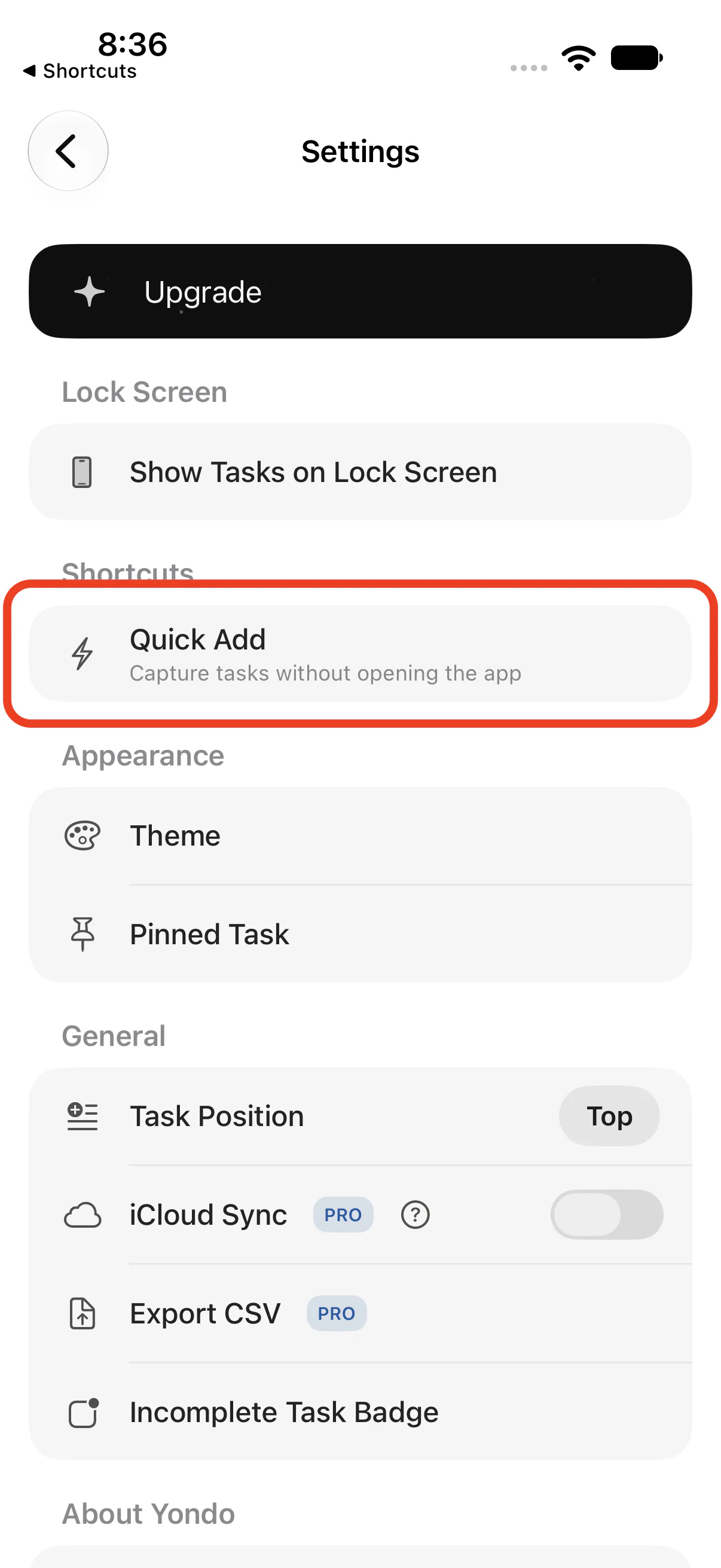
In Yondo, open Settings and tap “Quick Add” under “Shortcuts”
-
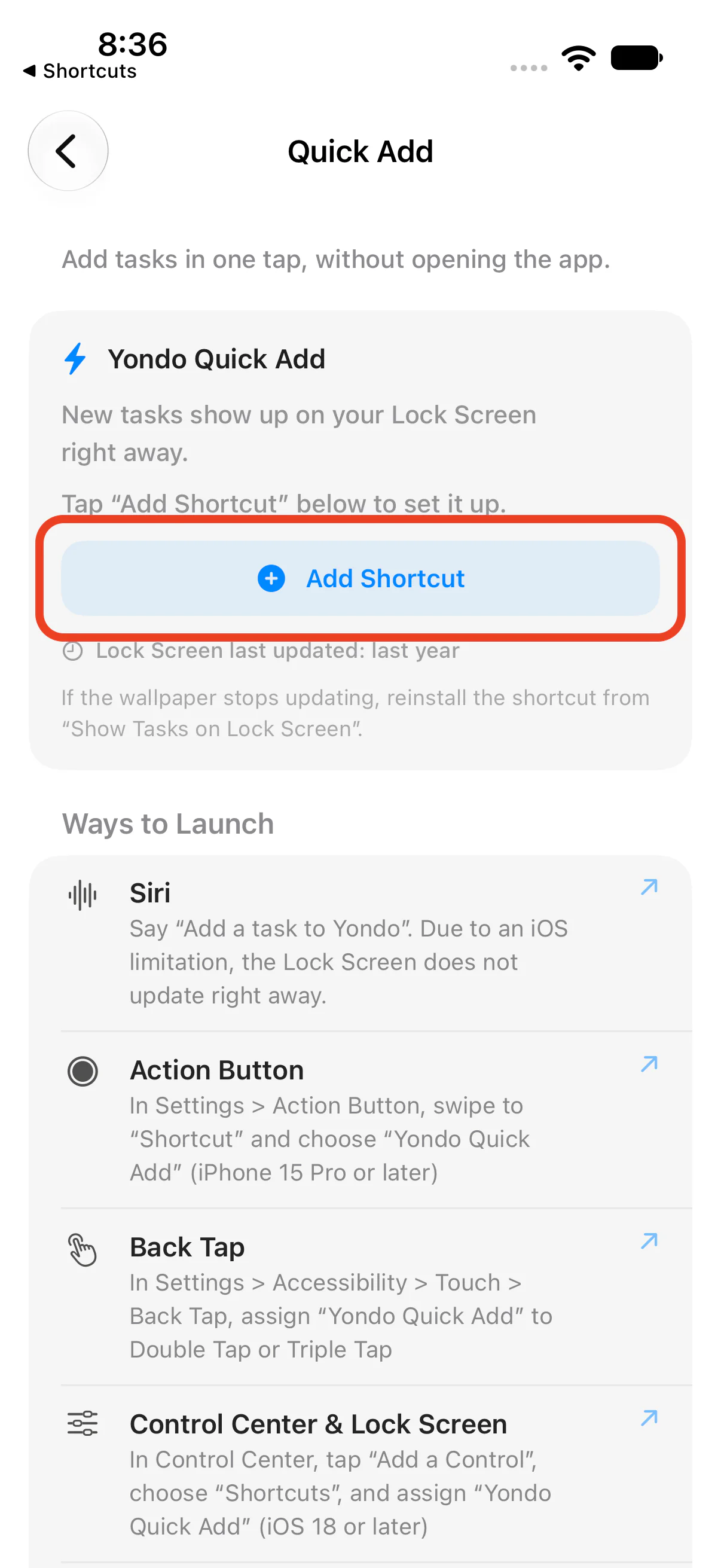
Tap “Add Shortcut”
-
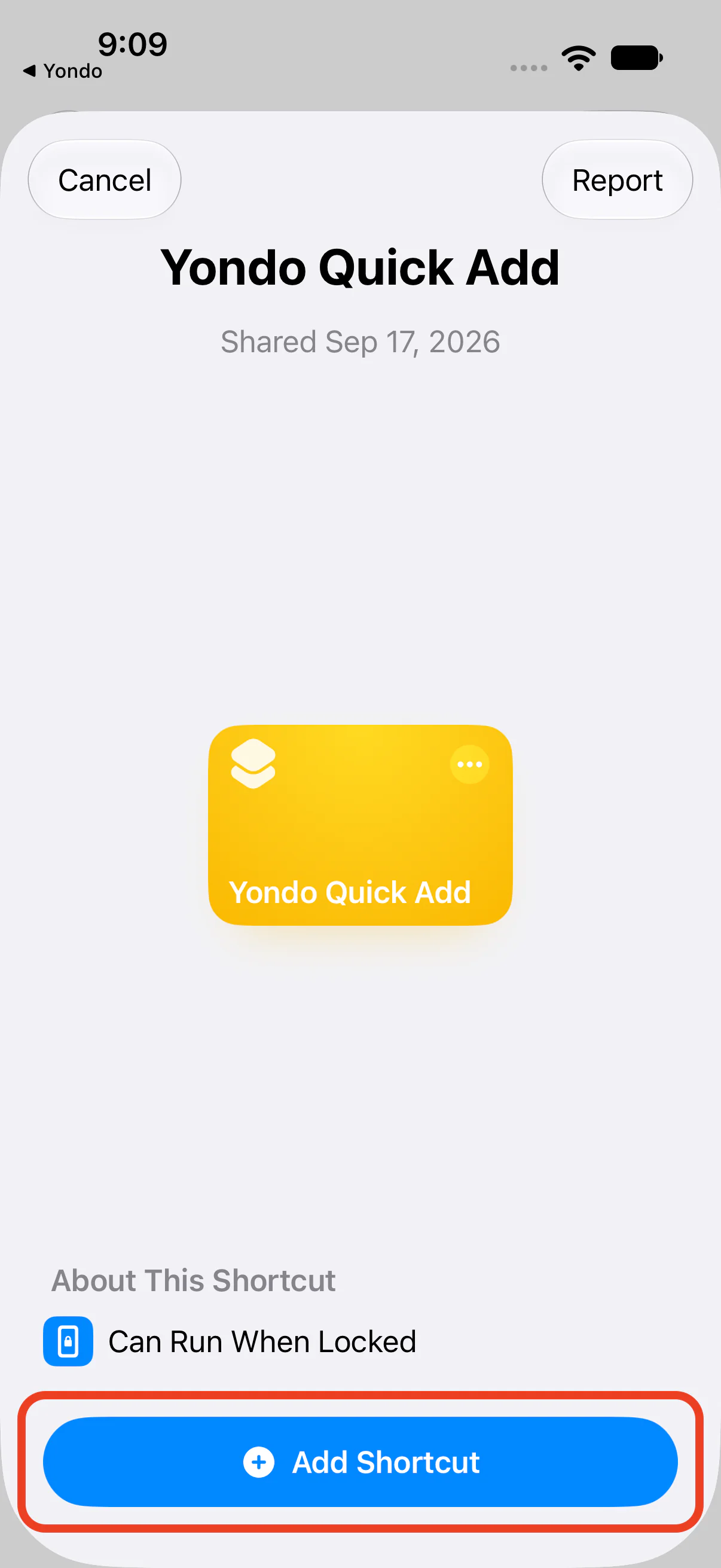
When Shortcuts opens, tap “Add Shortcut” again
From here, pick one way to launch it and set it up (you can set up more than one).
2. Assign it to the Action Button (iPhone 15 Pro or later)
-
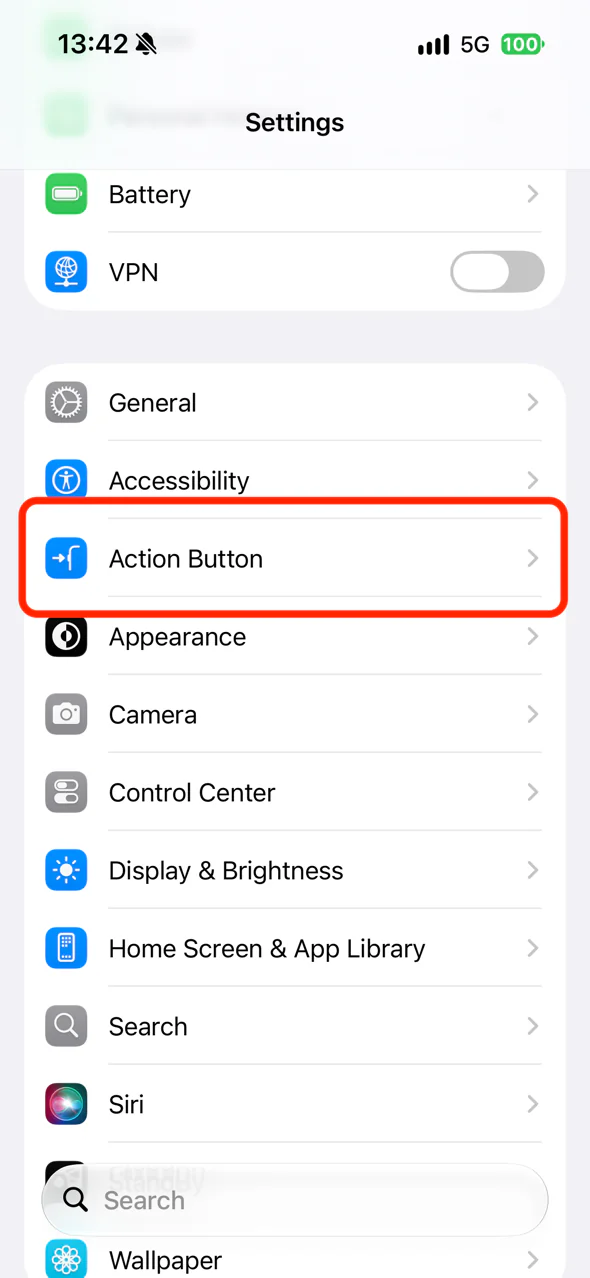
Open the iPhone Settings > “Action Button”
-
Swipe sideways to “Shortcut”, then tap the picker below it
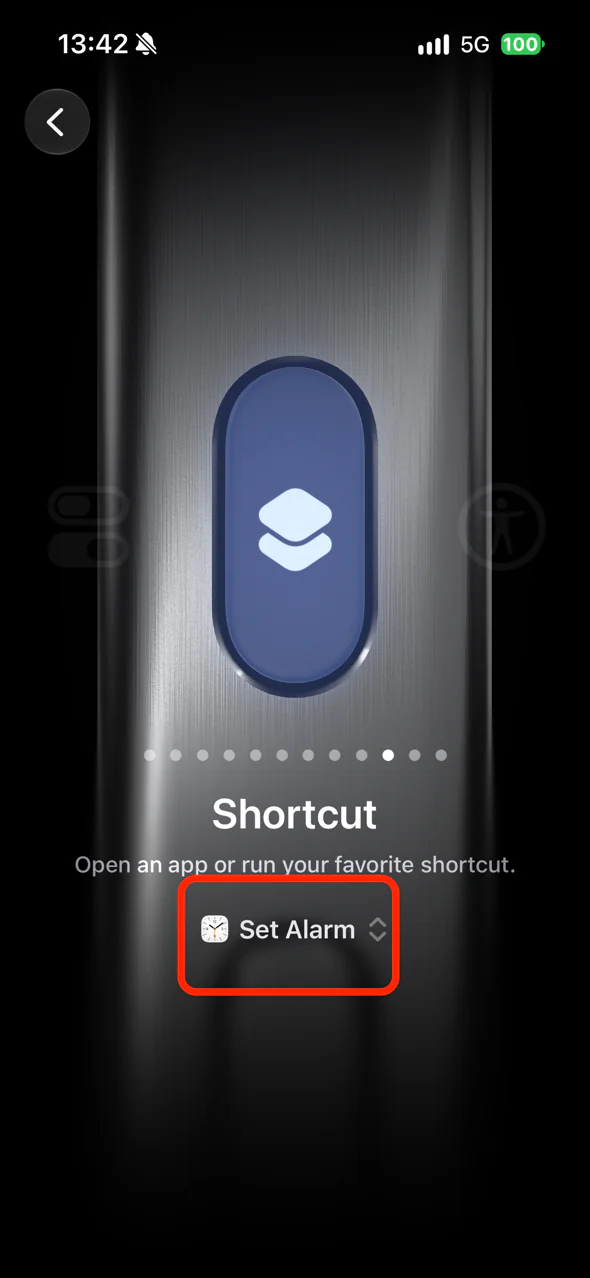
-
Choose “Yondo Quick Add” from the list
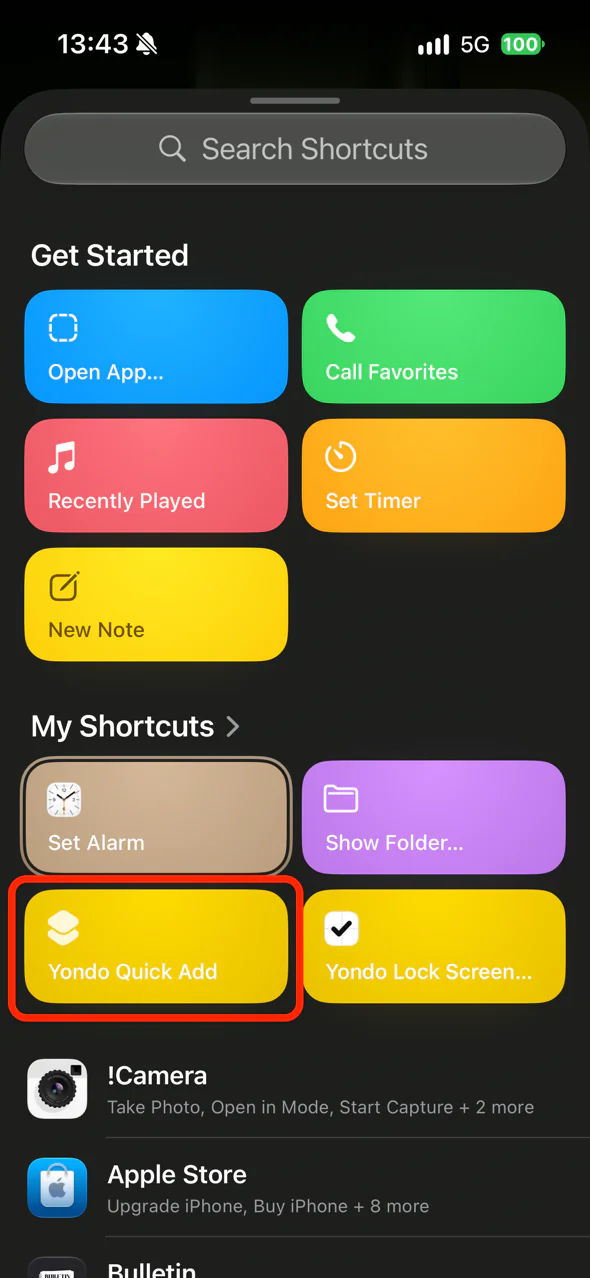
-
You’re done when the picker shows “Yondo Quick Add”
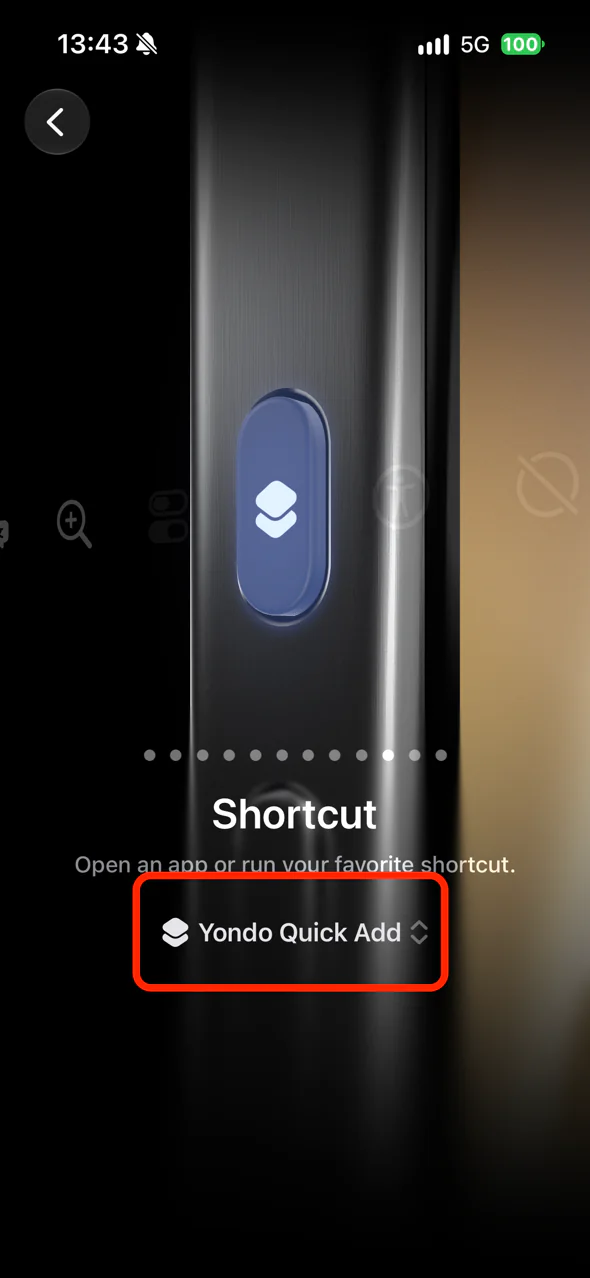
3. Assign it to Back Tap
-
Open the iPhone Settings > “Accessibility”
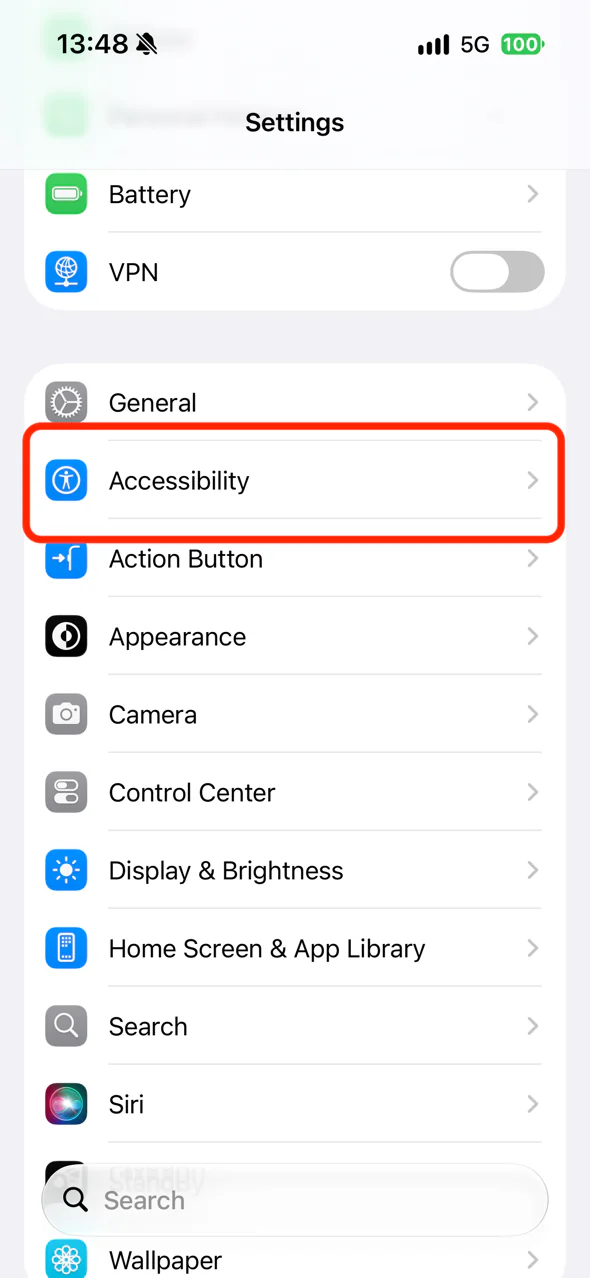
-
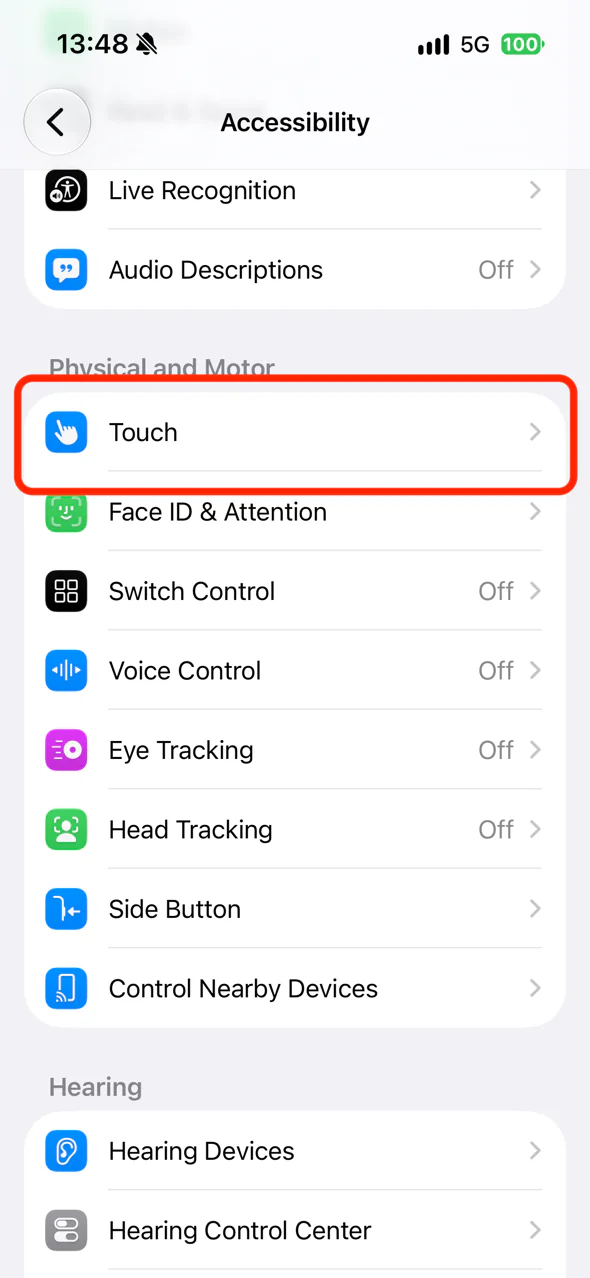
Open “Touch”
-
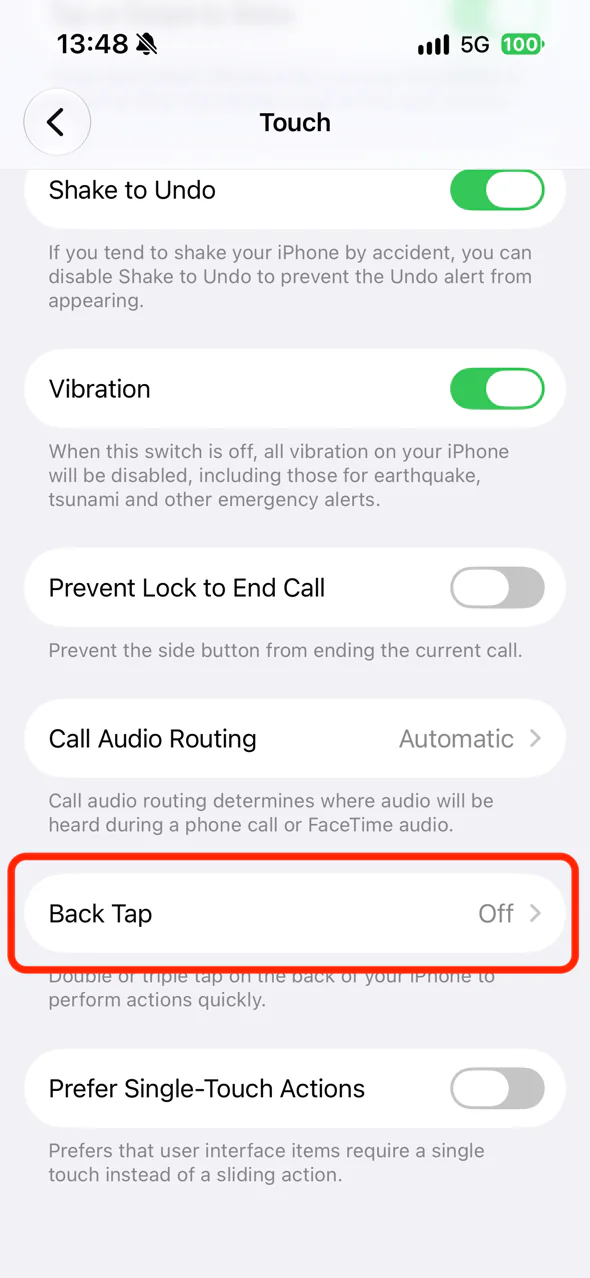
Scroll down and open “Back Tap”
-
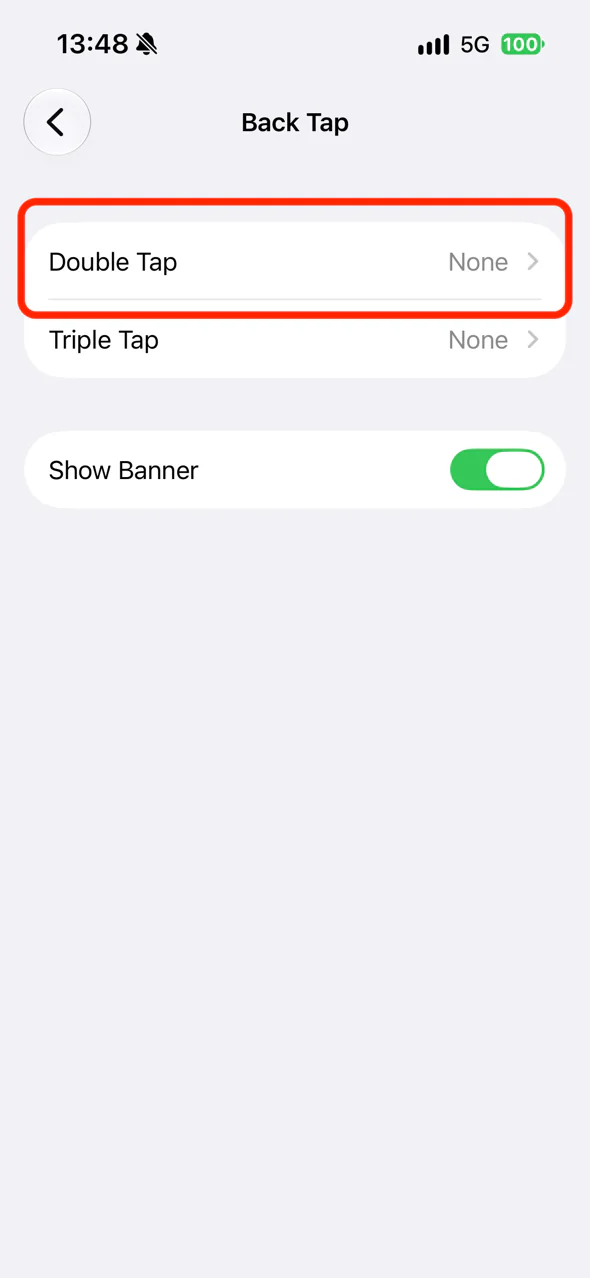
Choose “Double Tap” (or “Triple Tap”)
-
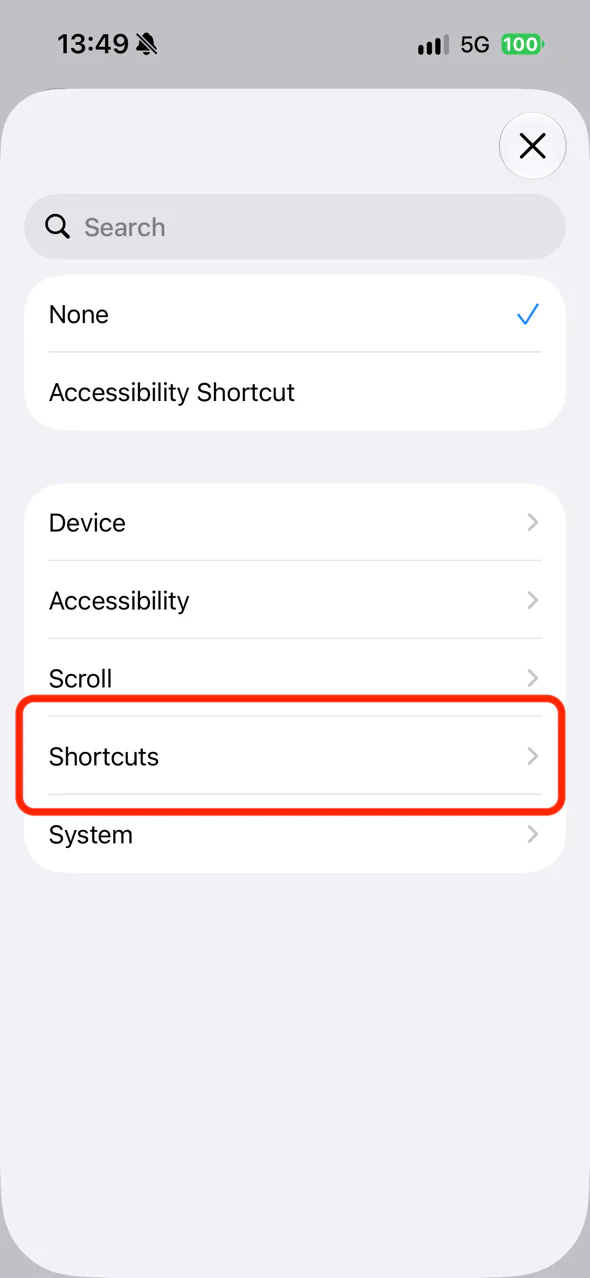
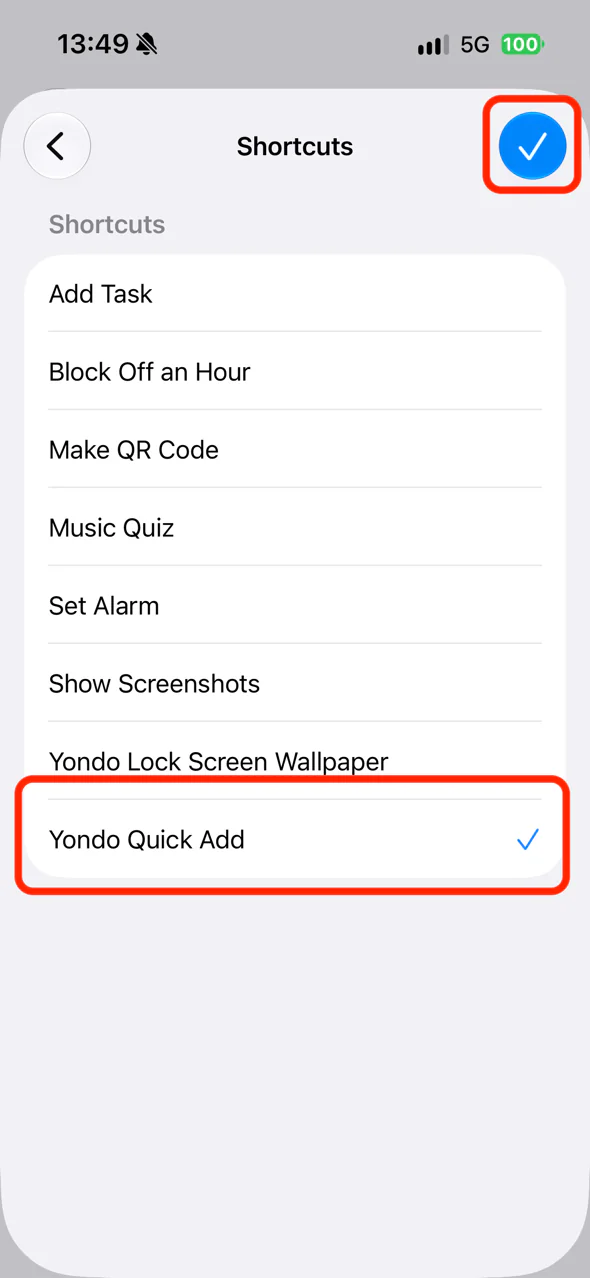
Tap “Shortcuts”, choose “Yondo Quick Add”, then tap the check mark in the top-right corner
4. Add it to Control Center (iOS 18 or later)
-
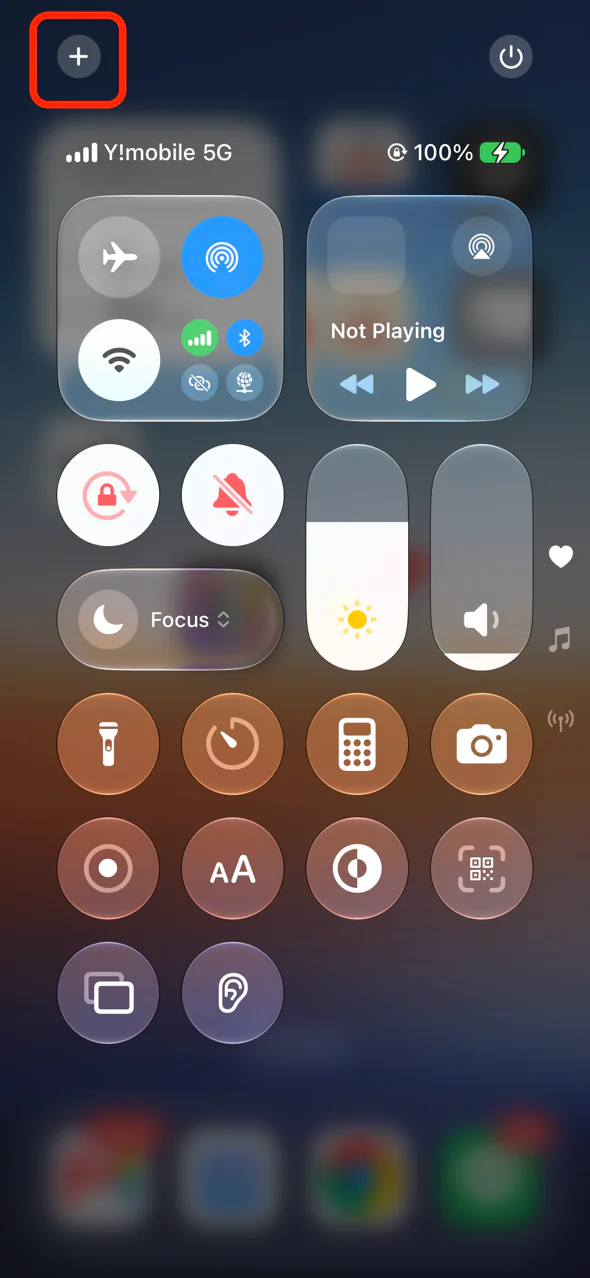
Swipe down from the top-right corner to open Control Center, then tap “+” in the top-left corner
-
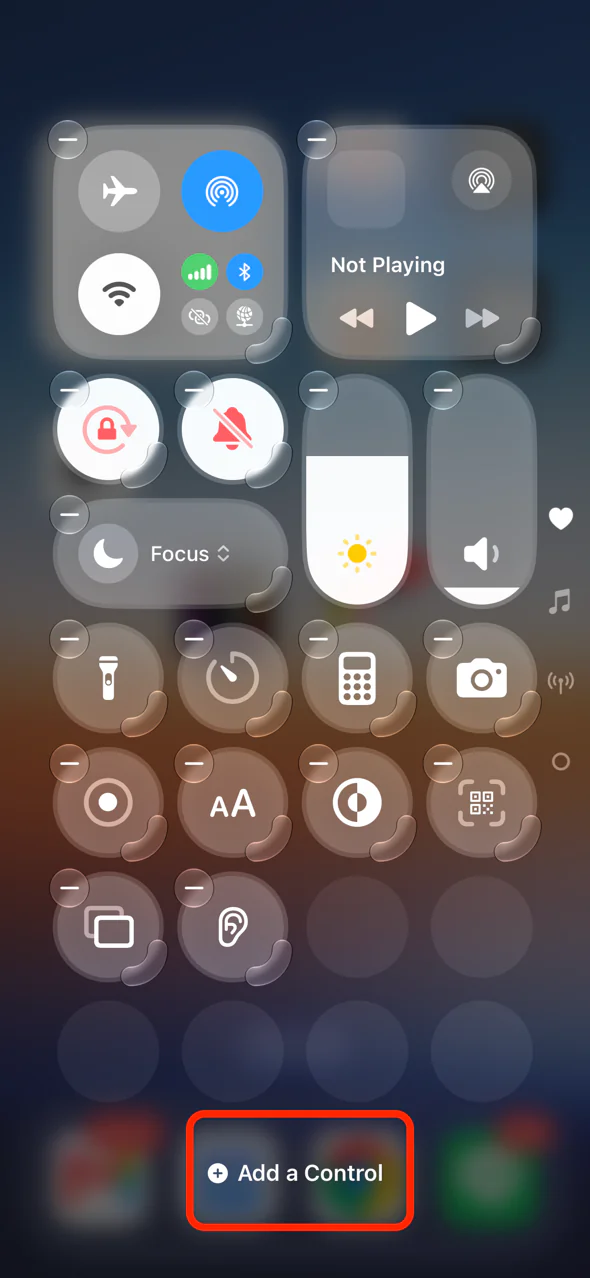
Tap “Add a Control”
-
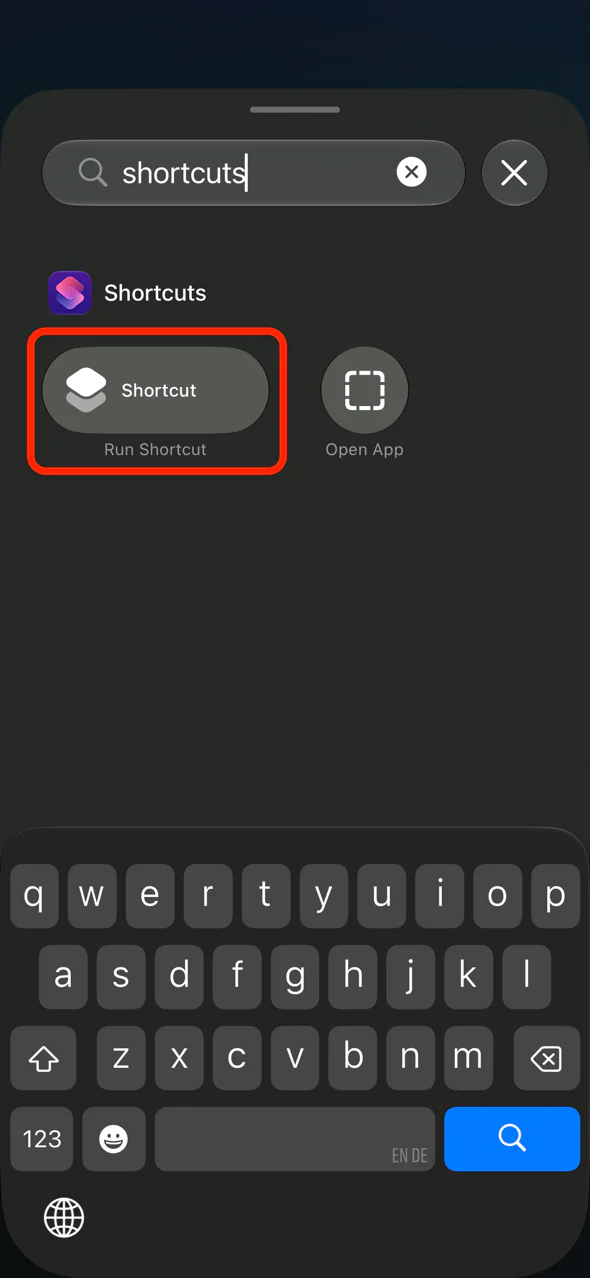
Type “Shortcuts” in the search field and choose “Shortcut”
-
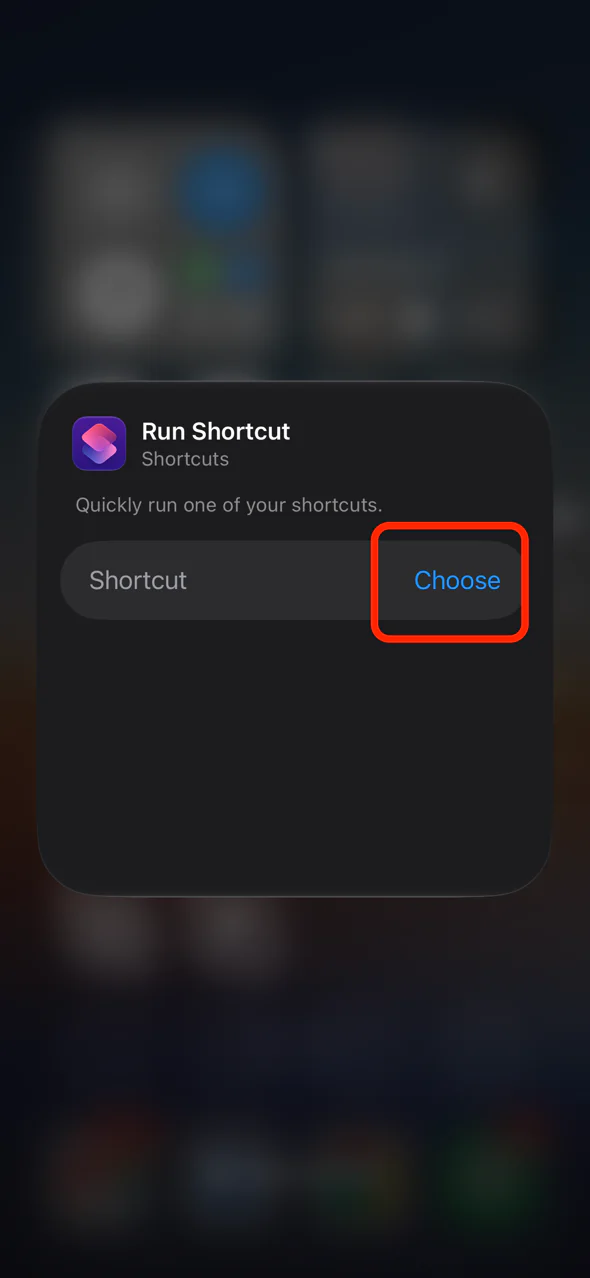
Tap “Choose” on the “Run Shortcut” control
-
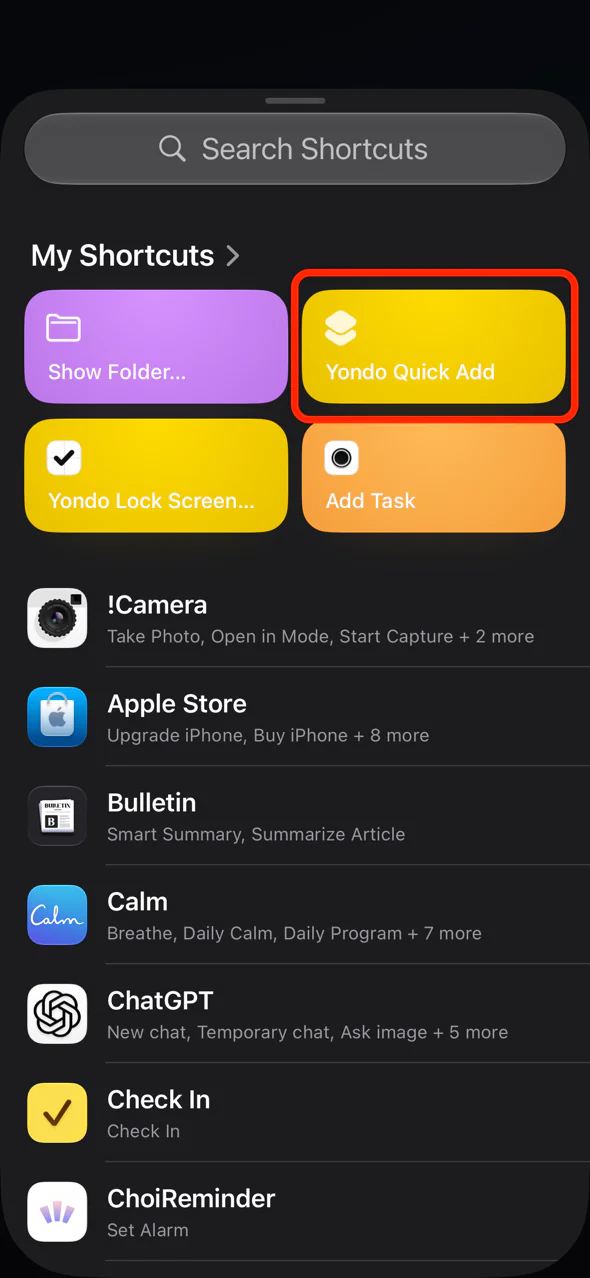
Choose “Yondo Quick Add”
-
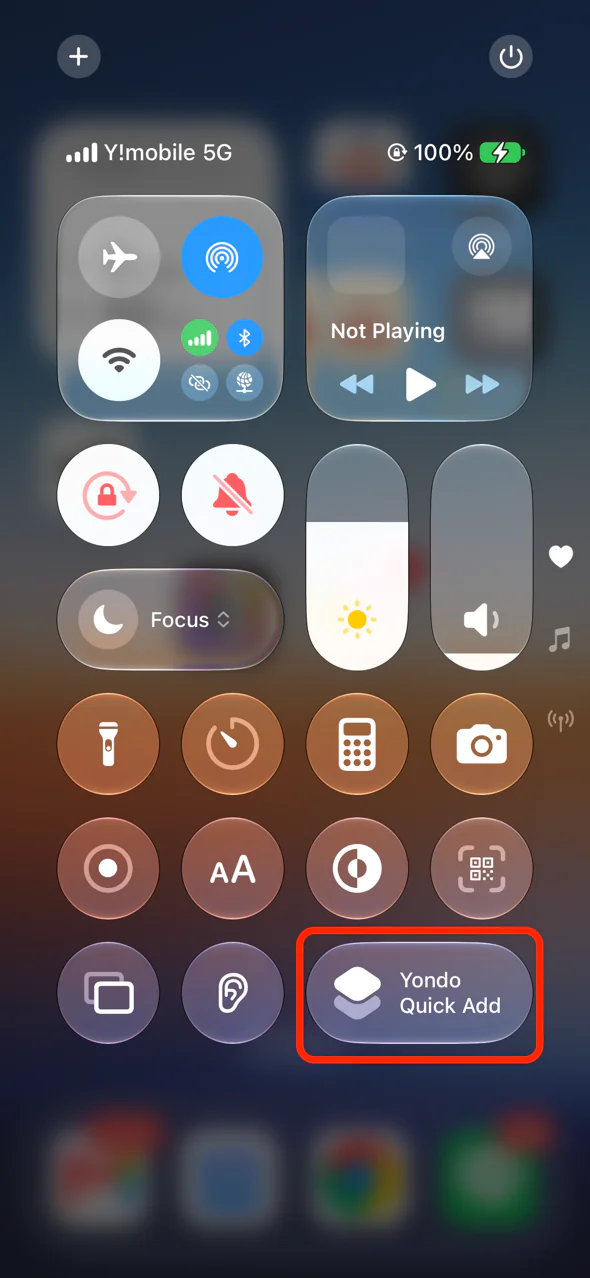
You’re done once the control appears in Control Center
5. Use it with Siri (no assignment needed)
You can also add a task just by saying “Add a task to Yondo”. However, due to an iOS limitation, Siri can’t update the Lock Screen right away — it updates the next time you open Yondo. If you want it to show up immediately, use the Action Button, Back Tap, or Control Center above.
Try it
When you launch it the way you set up, you’ll be asked for the task name and then the placement — the Lock Screen updates as soon as the task is saved. If you have two or more sheets, you’ll first choose the sheet to add the task to. A task added to a sheet other than the sheet for the Lock Screen doesn’t appear on the Lock Screen.
FAQ
Quick Add creates the task, but the wallpaper doesn’t update
Check that “Yondo Lock Screen Wallpaper” hasn’t been deleted or renamed in the Shortcuts app — Quick Add calls this shortcut to update the wallpaper. If it was deleted or renamed, re-add the wallpaper shortcut from Yondo's “Set Lock Screen” screen (Step 1 of this guide) — you don't need to reinstall Quick Add itself. (If the “Lock Screen last updated” time on that same screen keeps advancing, wallpaper updates are working correctly.)
I completed a task from the pin on the Lock Screen, but it's still on the wallpaper
The task itself is completed — the wallpaper is just still showing an older image. The next time you open Yondo, the wallpaper is redrawn and the completed task disappears from it. Due to an iOS limitation, apps can't change the Lock Screen wallpaper directly, so Yondo's wallpaper is regenerated when you open or close Yondo. That's why tapping the check on the pinned banner doesn't change the wallpaper at that moment.
The wallpaper doesn't change when I lock the phone
Check that the automation is set to Run Immediately and that the shortcut it runs is “Yondo Lock Screen Wallpaper”. Also note that Apple's default wallpapers don't support custom images, so you may need to long-press an empty area on the Lock Screen and add a supported wallpaper.
“Couldn't Open Shortcuts” appears
Please update Yondo to the latest version from the App Store. This iOS 18 issue was fixed in version 2.4.0. In the latest version, the button in step 1 opens a share sheet — choose “Shortcuts” there to add the shortcut.
No selectable wallpaper appears
Apple's default wallpapers do not allow their image to be replaced. Long-press an empty area on the Lock Screen and add a new wallpaper that supports custom images; it will then appear as an option.
The photo on the chosen wallpaper changed to the four-quadrant image
Setup is working correctly. The blue “Wallpaper” field in Shortcuts chooses which Lock Screen will show Yondo. To use the photo behind the four quadrants, open Set Lock Screen in Yondo, choose Background > Photo, select the photo, and run the test again.
A confirmation screen keeps popping up while I use my phone
Check the Automation tab in the Shortcuts app — if the automation from Step 3 targets apps other than Yondo, it will run every time you use one of those apps. Also open “Yondo Lock Screen Wallpaper” for editing, open the details of the “Set Wallpaper” action, and make sure “Show Preview” is off. If it's on, a confirmation screen appears every time the shortcut runs.
“Stop and Output Wallpaper” appears in the shortcut
This is a completion and output setting shown by the Shortcuts app to control how the result is handled. It is not another wallpaper-changing step added by Yondo. Leave it as is; it does not undo the update or choose a different wallpaper.
It also changes my Home Screen
Yondo sets the image on the wallpaper you choose in the shortcut. iOS treats the Lock Screen and Home Screen as a wallpaper pair, so both may be updated. To use a different Home Screen wallpaper, open iPhone Settings > Wallpaper and customize the Home Screen separately.
Still not working?
- Try restarting your iPhone.
- If it still doesn't work, contact us from “Send Feedback” in the app.
Last updated: August 2, 2026